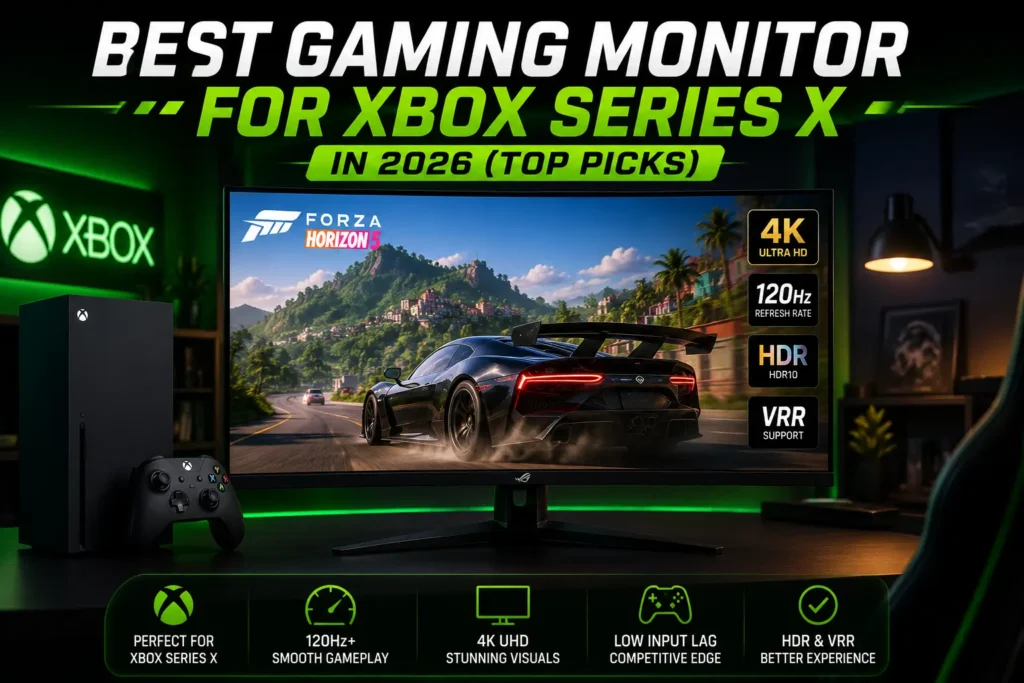
Best Gaming Monitor for Xbox Series X in 2026 (Top Picks)
If you have spent any time in Xbox subreddits, you have seen the same question asked a dozen different ways. What monitor should I actually get for my Series X?
You have also seen the same mistake made just as often. Someone buys a monitor with a huge refresh rate number, plugs it in, and the console will not even let them turn on 120Hz.
So let us clear something up first. Your Xbox Series X tops out at 4K resolution at 120Hz. A 240Hz or 360Hz panel is not wasted money, since it will still look great, but you are paying for headroom the console can never use unless you also game on PC.
The best gaming monitor for Xbox Series X in 2026 is one that fully saturates that 120Hz ceiling with real HDMI 2.1 bandwidth, supports VRR without flickering, and delivers HDR that is actually noticeable. Below, we break down what to look for, then get into specific picks across every budget.
What Actually Matters for an Xbox Series X Monitor
The 120Hz Ceiling
This is the most misunderstood spec in the whole buying process. The Xbox Series X can output up to 3840×2160 at 120Hz over HDMI 2.1, and that is the hard limit.
So when you see a monitor marketed at 240Hz or higher, understand that on console duty you are capped at 120Hz. A high native refresh rate still tends to mean better panel engineering and lower response times. Just do not pay a premium chasing a number your Xbox will never hit.
The HDMI 2.1 Bandwidth Trap
Not all HDMI 2.1 ports are equal. The full spec supports up to 48Gbps, but the Series X only needs around 40Gbps for 4K at 120Hz with 10 bit color.
The real danger is budget monitors that print HDMI 2.1 on the box while using older TMDS signaling instead of the newer Fixed Rate Link architecture. Those ports often quietly fall back to 4K at 60Hz.
If a listing does not clearly state FRL support or an actual bandwidth number, treat the HDMI 2.1 label with some skepticism. Check owner reviews before buying.
Look for the “Designed for Xbox” badge. Microsoft runs its own certification program with Asus, Acer, and Philips, and a monitor carrying this badge is guaranteed to support 4K, 120Hz, HDR, and VRR without the guesswork. It is not the only way to buy a safe monitor, but it removes the bandwidth trap entirely if you can find one in your budget.
VRR Matters More Than Resolution
Variable Refresh Rate stops the screen tearing you get when a game’s frame rate dips below its target, which happens constantly in open world titles.
If you are choosing between slightly higher resolution with no VRR, or solid VRR support, take the VRR every time. Look for “HDMI Forum VRR” or “FreeSync Premium Pro over HDMI” in the spec sheet.
ALLM: The Feature Most Guides Skip
Auto Low Latency Mode, or ALLM, is a small but useful feature that most buying guides do not mention at all. When your Xbox starts a game, ALLM tells the display to switch into its low latency game mode automatically.
Without ALLM, you would need to manually change a picture setting every time you go from watching Netflix to gaming. Every Xbox Series X monitor worth buying supports this, but some older or budget TVs used as monitors still need a firmware update to unlock it.
HDR400 vs Mini-LED vs OLED
Entry-level HDR400 certification is common on budget monitors, but it relies on global dimming across the whole panel. Dark scenes can look gray and flat rather than genuinely deep.
If HDR is a priority, and on Xbox it should be since the console only does HDR in 4K, you want a Mini-LED panel with real local dimming zones, or OLED with per-pixel blacks.
OLED wins on contrast and color. Mini-LED wins on raw brightness and has no burn-in risk, which matters if you leave a HUD or desktop up for long stretches.
Monitor or TV? Which Should You Buy?
This comes up constantly on Reddit and Quora, and the honest answer depends on where the console lives.
If your Series X sits on a TV stand with couch seating six feet back or more, a large format TV is usually better value. You get a bigger screen for similar money, and modern gaming TVs now support 120Hz and VRR too.
If your setup is a desk, a dedicated monitor is almost always the better call. TVs add processing lag even in game mode, while monitors are built for low input lag at close viewing distances.
There is also a size argument nobody mentions enough. A 55-inch TV two feet from your face is genuinely uncomfortable, while a 27 to 32-inch monitor at that distance fills your field of view properly.
What Is the Best Gaming Monitor for Xbox Series X in Budget?
Here is a quick comparison before we break each one down.
| Monitor | Panel | Resolution | Refresh Rate | Price Tier | Best For |
|---|---|---|---|---|---|
| Asus ROG Swift OLED PG27UCDM | QD-OLED | 4K | 240Hz native (120Hz on Xbox) | Flagship | Best overall picture quality |
| Samsung Odyssey OLED G8 | QD-OLED | 4K | 240Hz native (120Hz on Xbox) | Mid-high | Same OLED look for less money |
| Gigabyte M32UC / BenQ Mobiuz EX321UX | Mini-LED / VA | 4K | 144Hz native (120Hz on Xbox) | Mid | True 4K without OLED price |
| ViewSonic XG2405 | IPS | 1440p | 144Hz | Budget under $300 | Sharp image, no 4K needed |
| Entry 1440p VRR panel | VA / IPS | 1440p | 120Hz | Under $200 | Tight budget, VRR still working |
| 55-inch KVM gaming monitor | Mini-LED | 4K | 120 to 144Hz | Niche / shared setup | Xbox, PC, and console switching |
Why Choose the Asus ROG Swift OLED PG27UCDM?
A 27-inch QD-OLED panel with full HDMI 2.1 bandwidth and Dolby Vision support is the best all-around choice for Series X owners right now.
It is not the cheapest option, but it makes every part of the Xbox experience, HDR, VRR, and motion clarity, look the way the console is capable of looking. The 240Hz native refresh rate is more than the console needs, but that headroom gives the panel plenty of margin at 120Hz.
If 27 inches feels small for your desk, a 32-inch variant in the same panel family exists too, usually at a real price jump and slightly higher input lag.
Mid Tier OLED: Samsung Odyssey OLED G8
If the flagship price is too steep, a 32-inch OLED alternative around the same native 120Hz mark gets you most of the same picture quality for less money, especially on sale.
You give up a bit of peak brightness and HDR punch. Check whether it supports 1440p at 120Hz if you plan to use the same screen with a PC later, since some panels in this tier only hit that combination at lower refresh rates.
Mini-LED Value Pick: Gigabyte M32UC or BenQ Mobiuz EX321UX
For buyers who do not want OLED money at all, a 27 to 32-inch 4K panel using Mini-LED backlighting is the sweet spot right now.
You lose the perfect blacks and usually lose Dolby Vision, but you gain a brighter screen that performs better in a sunlit room, and local dimming still gets you noticeably deeper contrast than a plain LCD panel.
This is realistically where most people should shop if $700 and up feels steep but you still want true 4K with HDMI 2.1.
Budget Under $300: ViewSonic XG2405 or Similar
If your budget caps out well under $300, give up native 4K and HDMI 2.1 bandwidth. That is genuinely fine.
A 1440p panel with a VA or Mini-LED backlight, a 120Hz capable refresh rate, and solid native contrast will still look sharp on Xbox. The console downsamples the signal, and most people at a normal desk distance will not notice the resolution drop as much as review sites imply.
What you will notice is response time. Do not go so cheap that you get visible smearing in fast shooters or racing games.
Tight Budget Under $200
Look specifically for a 1440p panel that at least supports VRR over HDMI, even if it cannot do 4K at all.
This is the tier where people most often buy a monitor that technically supports 120Hz only at 1080p, then feel let down that 4K content looks soft. Read the fine print on which resolution the higher refresh rate actually applies to.
For a Shared Setup: 55-inch KVM Gaming Monitors
There is a growing category of 55-inch class gaming monitors that behave more like desktop displays than TVs, with built-in KVM switching and automatic source detection between your Xbox, a PC, and other consoles.
It is a niche pick, but if you share a gaming and work station, it solves a real annoyance. No more manually flipping inputs every time you switch from console to desktop.
If you want to explore more info visit techpedian
How to Turn On 4K, 120Hz, and VRR on Xbox Series X
This is the single most common complaint in Xbox forums, and it usually is not a monitor problem at all.
Go to Settings, then General, then TV and Display Options. Check that both “Allow 4K” and “Allow 120Hz” are switched on. These are not enabled by default on every console or every HDMI profile.
If either option is greyed out, the console is telling you it is not detecting a cable or port capable of the full HDMI 2.1 signal. That almost always means the HDMI cable is the older, lower bandwidth type, or the monitor’s port is one of those budget “HDMI 2.1 in name only” implementations.
Swapping in the cable that shipped with the console, or a certified Ultra High Speed HDMI cable, fixes this more often than people expect. Once 4K and 120Hz are allowed, VRR should already be active on a compatible display.
Fixing the Black Screen or “No Signal” Error After Enabling VRR
This is one of the most common threads on Reddit and TV support forums, and it is worth a direct answer since most articles skip it.
If your screen disconnects or shows no signal the moment a game launches with VRR on, the fix in most reported cases is a firmware update on the display itself, not the Xbox. Check your monitor or TV brand’s support page for the latest firmware before assuming the console is at fault.
If updating firmware does not help, try disabling VRR, confirming the game runs fine, then re-enabling it after the update installs. Users on Samsung and Sony displays have both reported this sequence resolving the issue after a stuck firmware version.
What Monitor Buying Mistakes Should You Avoid?
The biggest one is chasing a refresh rate number the console cannot use instead of checking whether the panel delivers full 4K at 120Hz over real HDMI 2.1.
The second is assuming every HDR label means the same thing. An HDR400 badge on a cheap panel can look worse than a well tuned SDR image, since the panel cannot get bright enough to make HDR highlights pop.
The third is ignoring response time and motion handling in favor of resolution. Visible smearing behind moving targets is far more distracting than a slightly softer static image in fast shooters.
The last is a simple logistics mistake. Buying a monitor with no audio-out jack or built-in speakers, then being surprised there is no sound. Most gaming monitors, even expensive ones, assume you are pairing them with a headset or separate speakers.
Frequently Asked Questions
Conclusion
There is no single best monitor here, and any article pretending otherwise has not thought about your specific setup.
If money is not the deciding factor, the Asus ROG Swift OLED PG27UCDM is the closest thing to a definitive answer. If you are being sensible about budget, a Mini-LED 4K panel like the Gigabyte M32UC gets you most of that experience for real savings.
If you are buying on a tight budget, a well chosen 1440p VRR monitor will still make your Series X look and feel far better than whatever TV you were using by default.
The one spec that should never get compromised, regardless of price, is VRR. Everything else is a matter of how much picture quality you are willing to pay for.