Windows 11 vs Windows 11 Pro for Gaming: Which Should You Choose?

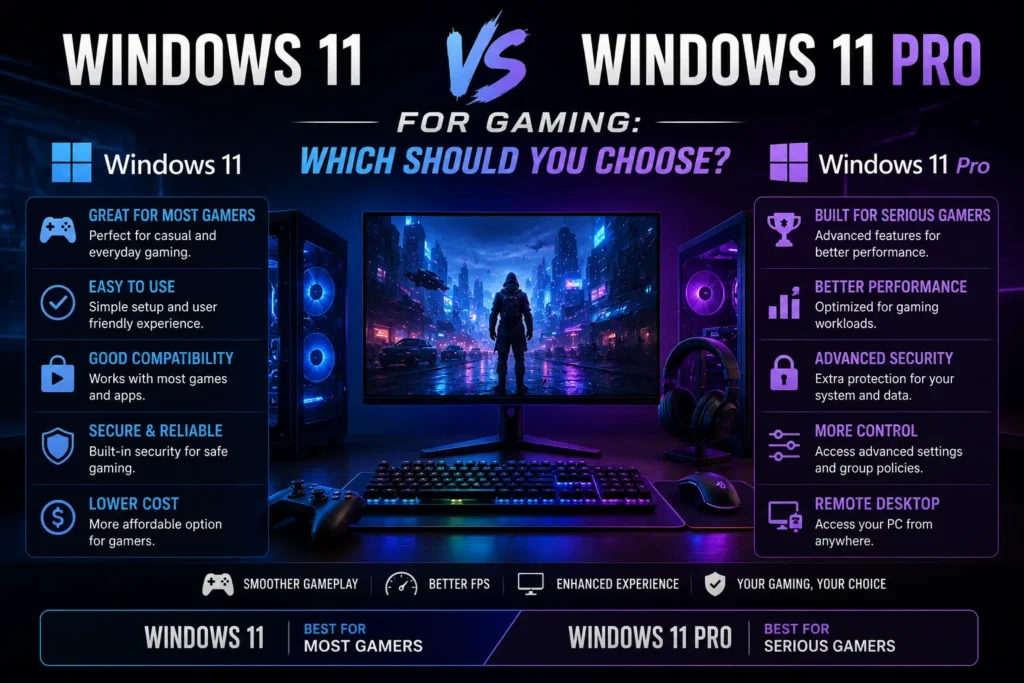
Windows 11 Home vs Pro for gaming comes down to one simple fact: both versions run every game at the exact same frame rate on the same hardware.
There is zero FPS difference. Zero input latency difference. Zero load time difference. Microsoft does not lock a single gaming feature behind the Pro edition. DirectStorage, Auto HDR, Game Mode, and DirectX 12 Ultimate all ship on Home and Pro equally.
So if you are standing at checkout wondering whether that $60 Pro upgrade improves your gaming experience, the answer is no. Save the money.
That said, there are real situations where Pro earns its price tag for gamers. This guide tells you exactly who those people are and why everyone else should stick with Home.
Does Windows 11 Pro Give You Better Gaming Performance?
No. Both editions run on the same kernel, the same DirectX stack, and the same GPU driver path.
Game Mode, Auto HDR, and DirectStorage all ship on Home and Pro equally. Microsoft does not gate a single gaming-specific feature behind the Pro edition.
Independent benchmark testing backs this up. Frame rates, frame times, and 1% lows stay strictly within margin of error between the two editions when hardware is identical. Your GPU, CPU, and SSD decide your performance. Your Windows edition doesn’t touch any of that math.
Ask around any PC building community and you’ll hear the same consensus from real builders running both side-by-side: there is no measurable FPS difference, full stop. The hardware and drivers do all the work.
Common Myths, Cleared Up
- “Pro gives you higher FPS.”
False. Rendering happens in the GPU driver, DirectX, and kernel path, which are completely identical on both editions. - “Pro is more optimized for gaming.”
False. Pro’s optimizations target IT management, domain control, and enterprise security, not game rendering or load times. - “Pro has lower input latency.”
False. Both editions process input through the exact same driver stack, so your click-to-action time will not change. - “Disabling background services on Pro frees up performance.”
Misleading. Both editions let you disable the same startup apps and background services through Task Manager and Settings. Pro doesn’t unlock any hidden performance toggle that Home lacks. - “You need Pro to stop forced Windows Updates from interrupting games.”
Misleading. While Pro includes the Group Policy Editor to pause or defer updates indefinitely, Home gives you full control over Active Hours (up to 18 hours a day) and lets you pause updates for up to 5 weeks with a single click. You don’t need to spend $60 just to stop Windows from restarting mid-match.
What Windows 11 Pro Actually Adds
Pro isn’t a fake upsell. It genuinely unlocks a set of features, but they aren’t built with gamers in mind.
| Feature | Home | Pro | Matters for Gaming? |
|---|---|---|---|
| BitLocker Drive Encryption | No | Yes | Rarely |
| Hyper-V Virtualization | No | Yes | Only for VM-based testing |
| Windows Sandbox | No | Yes | Only for testing untrusted files |
| Remote Desktop (Host) | Client only | Full host | Useful for remote access to your rig |
| Group Policy Editor | No | Yes | Mostly for IT setups & deep tweaks |
| Microsoft Entra ID Join | No | Yes | Business environments only |
| Max RAM Supported | 128GB | 2TB | No consumer gaming board needs this |
| Max CPU Cores Supported | 64 | 128 | No consumer game scales to this |
| Dual CPU Socket Support | No | Yes | Gaming PCs use a single CPU |
| Update Deferral | Up to 5 weeks | Indefinite | Minor difference for gamers |
Almost every Pro-only feature is aimed at businesses, developers, or IT departments managing fleets of machines, not players trying to hit high refresh rates.
Windows 11 Home vs Pro for Gaming: Full Side-by-Side
Here is the complete picture in one table so you can see exactly where the two versions differ and where they are identical.
| Category | Windows 11 Home | Windows 11 Pro |
|---|---|---|
| Price | ~$139 retail | ~$199 retail |
| FPS in Games | Identical | Identical |
| Load Times | Identical | Identical |
| Input Latency | Identical | Identical |
| DirectStorage | Yes | Yes |
| Auto HDR | Yes | Yes |
| Game Mode | Yes | Yes |
| DirectX 12 Ultimate | Yes | Yes |
| Xbox Integration | Yes | Yes |
| VRR Support | Yes | Yes |
| BitLocker | No | Yes |
| Hyper-V | No | Yes |
| Windows Sandbox | No | Yes |
| Remote Desktop Host | No | Yes |
| Group Policy Editor | No | Yes |
| RAM Limit | 128GB | 2TB |
| CPU Socket Support | Single | Dual |
| Best For | Pure gaming | Gaming plus dev or pro work |
Every row that affects gaming shows identical results. Every row where Pro leads points to professional or developer use. For a player whose machine exists to run games, Home wins on value every time.
What Gaming Features Do Both Editions Share?
Since the OS edition doesn’t change your gaming performance, it’s worth knowing exactly what you do get, because these features matter more than most buyers realize.
DirectStorage lets your GPU pull game assets straight from an NVMe SSD, skipping a slow round trip through the CPU. In supported titles, that means faster level loads and less stutter when new areas stream in.
Auto HDR takes games that were never built with HDR support and upscales their color and contrast range to look right on an HDR-capable monitor or TV. It’s a free visual upgrade on hardware you already own, as long as your display supports HDR.
Game Mode tells Windows to deprioritize background updates, notifications, and non-essential processes while a game is running, so your game gets first access to CPU resources during play.
Xbox Game Pass integration ties directly into the Xbox app on both editions, so cloud saves, achievements, and your library sync the same way whether you’re on Home or Pro.
None of these four features are locked behind Pro. If a listing or a friend tells you that you need Pro to get any of them, that’s simply incorrect.
Since both editions include the same gaming technologies, your choice comes down to features rather than performance. If you’re looking for the best OS for gaming, our detailed guide explains why Windows 11 remains the top choice for modern PC gamers.
What Is S Mode, and Why Do Most Buying Guides Skip It?
Some budget and mid-range laptops ship with Windows 11 Home in S Mode, catching new PC gamers off guard.
In S Mode, you can only install apps from the Microsoft Store. This blocks Steam, Epic Games Launcher, GOG Galaxy, and third-party tools outright until you turn it off.
The fix is free and takes two minutes: switch out of S Mode via the Microsoft Store app in Settings. Check this before assuming your Home laptop can’t run third-party game launchers.
Who Should Actually Choose Pro?
Pro makes sense for a specific, power-user crowd:
- Streamers and content creators who run virtual machines via Hyper-V to test capture setups, overlays, or tools before going live.
- Modders and game developers using Windows Sandbox or Hyper-V to run untrusted mods, unsigned tools, or experimental builds safely.
- Multi-PC households needing full Remote Desktop hosting, letting you stream or control your main desktop remotely without third-party software.
- Users requiring mandated IT policies, such as work-from-home or university rigs where BitLocker or Group Policy is mandatory.
- Power users demanding deep telemetry/privacy control, who use Pro’s Group Policy Editor to disable background telemetry deeper than standard Settings allow.
If you’re still comparing Windows 11 Home vs Pro, remember that Home already delivers the same gaming performance and features as Pro for nearly every player.
Real-World Scenarios
A casual single-player gamer building a first PC. Home is the clear pick. There’s no scenario where Pro’s feature set touches your experience with a story-driven or open-world game.
A competitive shooter player chasing every frame. Home again. Your frame rate ceiling is set by your GPU, your monitor’s refresh rate, and your in-game settings, not your OS edition. Spend the $60 difference on a better cooler or a faster SSD instead.
A streamer running OBS with a second PC or capture card. This is where Pro can genuinely help. Hyper-V lets you spin up test environments for new streaming software without risking your main setup, and Remote Desktop hosting lets you manage your streaming rig from another room.
A student or employee on a work-issued or school-issued laptop. Pro is often required here, not optional, since BitLocker and Group Policy are usually mandated by the organization’s IT policy rather than chosen by the user.
Is Windows 11 Better Than Windows 11 Pro for Gaming?
Before looking at differences, it helps to understand what Home and Pro have in common. Every gaming feature Microsoft built into Windows 11 ships in both editions. Not some. All of them.
| Feature | Windows 11 Home | Windows 11 Pro |
|---|---|---|
| DirectStorage | Yes | Yes |
| Auto HDR | Yes | Yes |
| Xbox Game Bar | Yes | Yes |
| Game Mode | Yes | Yes |
| DirectX 12 Ultimate | Yes | Yes |
| Xbox Game Pass support | Yes | Yes |
| Variable Refresh Rate support | Yes | Yes |
| NVIDIA and AMD driver support | Yes | Yes |
DirectStorage is the technology that lets your GPU load game assets directly from your NVMe SSD, bypassing the CPU bottleneck. It dramatically reduces load times in supported titles like Forza Horizon 5 and Ratchet and Clank. Both versions have it.
Auto HDR automatically applies HDR enhancement to games that were not built with HDR support. Games like Halo 5, Doom Eternal, and hundreds of older titles get better color range on HDR monitors without any developer patch. Both versions have it.
Game Mode suppresses background processes, notifications, and driver updates during active gameplay sessions. It prioritizes CPU and GPU resources toward the game. Both versions have it.
DirectX 12 Ultimate brings hardware ray tracing, mesh shaders, and variable rate shading to the platform. Every major title released in the last three years uses it. Both versions have it.
Does VBS Affect Windows 11 Gaming Performance?
This is the one case where Pro can actually reduce gaming performance compared to Home, and most guides miss it entirely.
Virtualization Based Security, called VBS, and Hypervisor Protected Code Integrity, called HVCI, are security features that consume CPU overhead for memory isolation. When active, some users report a 5 to 10 percent reduction in windows 11 gaming performance because of this overhead.
Both features exist in Home and Pro, but they are more commonly activated by default in Pro configurations, especially on business-setup machines.
If you install Pro and notice lower FPS than expected on otherwise identical hardware, check Windows Security settings and verify whether VBS and HVCI are active. Disabling them often recovers that performance gap entirely.
Watch Out for “Gaming Upgrade” Flash-Sale Ads
You’ve probably seen ads for steeply discounted Windows 11 Pro keys, sometimes under $20, claiming the upgrade will improve your gaming graphics or unlock DirectX 12 Ultimate.
That claim is misleading. DirectX 12 Ultimate ships on both Home and Pro identically, so it isn’t something you’re unlocking by upgrading editions. These ads often lean on real Pro features, like BitLocker or Hyper-V, but bundle in gaming language that doesn’t hold up.
If you want Pro for its actual features, that’s a reasonable purchase. Just don’t buy it expecting a gaming upgrade, because that part of the pitch isn’t accurate.
Is the Price Difference Worth It?
Windows 11 Home lists at $139 and Pro lists at $199 through Microsoft’s official retail channels, a $60 gap.
That $60 goes further inside your actual build than it does on a license you won’t use. It can bump a 500GB SSD to 1TB, push you from 16GB of RAM to 32GB, or cover a better case fan setup that keeps your CPU and GPU running cooler under load.
If you’re deciding where the last $60 of your budget goes, put it into hardware. It will show up in your gaming experience in a way the Pro edition never will.
How to Check Which Edition You Already Have
If you’re not sure which edition is already on your PC, you don’t need to guess or reinstall anything to find out.
Open Settings, go to System, then About. Under Windows specifications, you’ll see your edition listed directly, either Windows 11 Home or Windows 11 Pro.
If you bought a prebuilt PC or laptop and it came with Home, you can upgrade in place later without wiping your drive, in case your needs change down the road.
Frequently Asked Questions
Conclusion
For windows 11 home vs pro for gaming, the answer is clear. Home is the right call for nearly every gamer. It runs every game exactly as well as Pro, costs $60 less, and includes every gaming feature Microsoft built into the platform.
Pick Pro only if you specifically need Hyper-V, BitLocker, Remote Desktop hosting, or Group Policy for a real current use case. Not because Pro sounds like the stronger option.
The $60 difference belongs in your hardware, not your OS license.