
Gaming Laptop Overheating? How to Fix High Temps (2026 Guide)

Gaming laptop overheating is normal in most cases — 85–95°C while gaming is typical for modern gaming laptops, and they are designed to run that hot. High temperatures only become a real problem when the machine throttles hard, shuts down without warning, or keeps getting hotter month after month. If that sounds like your laptop, the fixes below are ordered from easiest to most involved, so start at the top.
Laptop silicon is built with far higher thermal ceilings than most owners realise. This guide covers the real normal-vs-problem temperature ranges (every figure names its source), why gaming laptops run hotter than desktops, and a fix ladder from easiest to most involved — plus when to stop fixing and use your warranty.
Is Gaming Laptop Overheating Normal? The Temperature Ranges
Most of the time, yes — and the reason is a number called TjMax: the manufacturer-rated maximum die temperature. Crossing it triggers thermal throttling or a protective shutdown, and laptop chips are engineered to boost right up against it. Intel lists TjMax per model on ark.intel.com; AMD CPUs don’t report it the same way (xda-developers.com). Here are the real ceilings and real-world ranges:
| CPU family | Rated ceiling (TjMax) | Typical gaming temps | Typical full-load temps |
|---|---|---|---|
| Ryzen 9 9950X3D / 9800X3D (Zen 5 X3D) | 95°C | 60–80°C | 80–95°C by design |
| Ryzen 7 7800X3D / 7950X3D (older X3D) | ~89–90°C | 55–75°C | Higher under full load |
| Intel Core Ultra 200S (Arrow Lake) | 105°C | 60–85°C | 80–100°C |
| Intel 12th–14th gen laptop chips | ~100°C | 60–85°C | 85–100°C |
Source: tech-insider.org, “How to Check CPU Temperature”, updated ~September 30, 2026.
One caveat: MSI laptops use a TCC offset at 95°C, so some MSI machines throttle before Intel’s 100°C ceiling is ever reached (forum-en.msi.com).
What this means: 90–95°C in a demanding game with stable clocks is the machine working as designed — not overheating. The practical rule of thumb: 85–95°C under heavy gaming load is normal, consistent with the real-world ranges tech-insider.org published in September 2026. Sustained 100°C+ with throttling, sudden shutdowns, or temperatures creeping upward over months — that is real gaming laptop overheating, and the fixes below address it.
For the desktop reference point, see our guide to normal GPU temperature while gaming.
Why Gaming Laptops Run So Hot
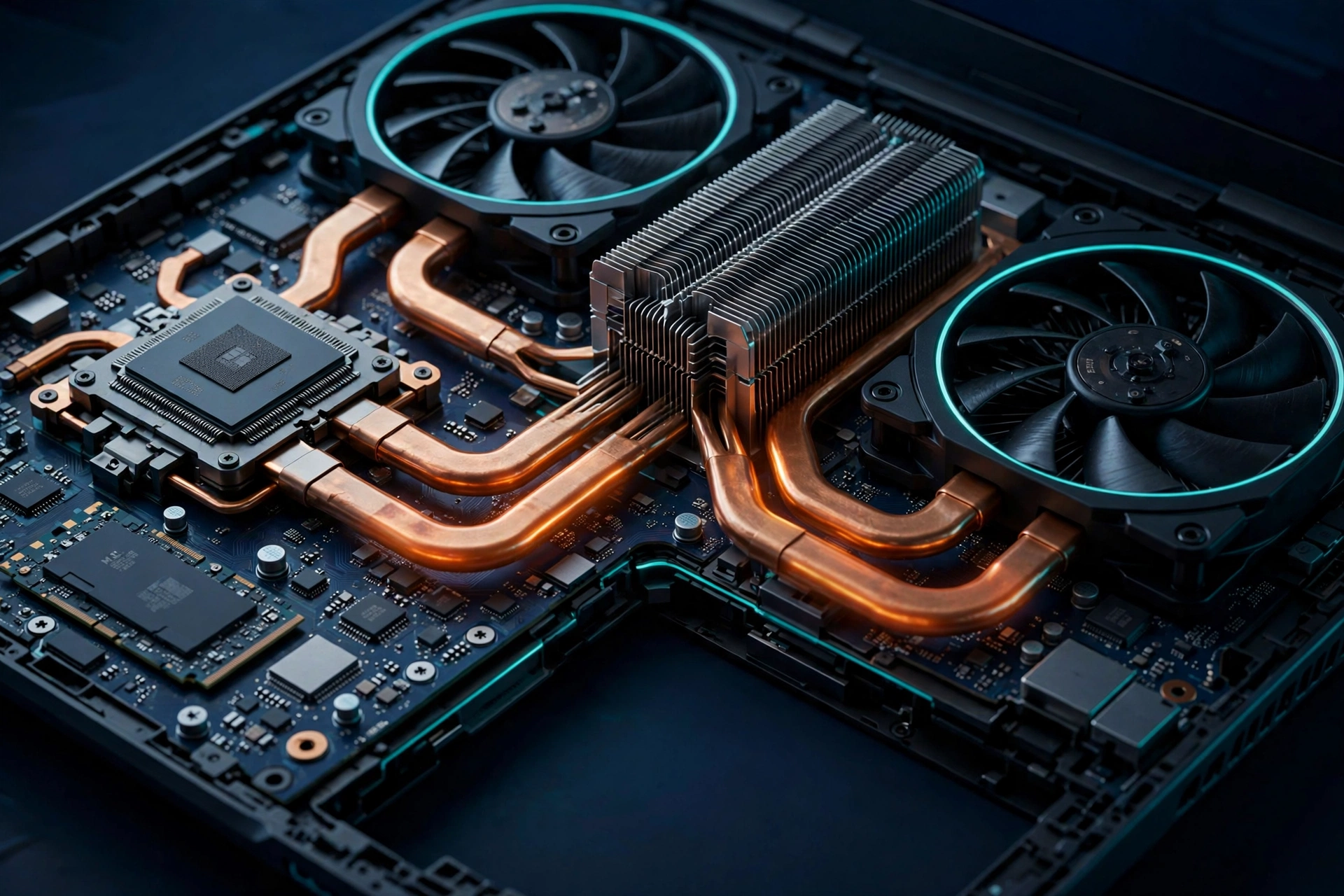
A gaming laptop must reject the heat of a 60–90W CPU plus a 100–140W GPU through two small fans in a chassis barely 2 centimetres thick. Three things make that hard:
- Thin chassis. No room for the big heatsinks and airflow paths a desktop tower uses.
- Shared heatpipes. CPU and GPU heat travel through the same copper pipes, so GPU heat reaches the CPU even when the CPU is barely working. Teardowns published on notebookchat.com show both chips tied to one shared fin stack — which is why gaming pushes CPU temps harder than a CPU-only stress test.
- Choked intakes. Most gaming laptops breathe from underneath — on a bed or sofa, those intakes are partially blocked before the fans do any work.
Fix 1: Give It Air (Free, Takes Two Minutes)
The cheapest fix in this entire guide is also the most skipped. Put the laptop on a hard, flat surface — a desk or table — and elevate the rear by an inch or two so the bottom intakes can breathe. A stand works; so do two bottle caps under the back feet.
In a user report cited by wccftech (August 2026), switching from a wooden desk to a metal surface dropped Cyberpunk temps from 80–90°C to 75–83°C — one machine, not a lab, but the point stands.
Fix 2: Cooling Pads — The Honest Split
- Cheap RGB pads: mostly decoration. Typical low-profile pads with weak fans trim only about 2–6°C, per user testing on notebookchat.com.
- Sealed turbo-fan pads: they genuinely work. Pads like the IETS GT500 and Llano V12 use 4,200–5,000 RPM fans with a foam seal that forces air into the intakes. User reports and a Medium cooling-pad roundup credit them with 15–20°C drops. The cost: they’re loud at max speed — you won’t run one at full blast in a shared room.
- The middle ground: a Razer Blade 16 with Razer’s own cooling pad averaged a 9–10°C drop in stuff.tv’s testing (September 2026).
What this means: buy a sealed turbo-fan pad if heat genuinely bothers you; skip the cheap RGB ones. For plain better airflow, the passive stand from Fix 1 gets you most of the way there for free.

Fix 3: Clean the Dust (Free)
Dust is an insulator. Fans pull it in, it mats onto heatsink fins and fan blades, and temperatures creep upward over months — the classic symptom of a laptop that “used to run fine.” Once or twice a year: shut down, unplug, blow compressed air through the vents in short bursts, and hold the fans still with a toothpick while you do it (letting them spin freely from the blast can damage the bearings). Don’t shake the can — tipping it can spray propellant instead of air, exactly what Tom’s Hardware forum guidance warns about.
For a deeper clean, remove the bottom panel (find a disassembly guide for your model) and blow out the heatsink fins directly.
Fix 4: Undervolting and Fan Curves (Beginner Guide)
Undervolting means lowering the voltage your CPU or GPU gets while keeping the same clock speeds. Less voltage means less heat, with no performance loss when done carefully — this is distinct from underclocking, which slows the chip down.
The tools: ThrottleStop or Intel XTU for Intel CPUs, MSI Afterburner for the GPU (wccftech, September 2026). One honest limitation — AMD laptop CPUs can’t be undervolted the same way, so this fix is mostly an Intel-laptop trick.
In notebookchat.com’s testing, a -140mV configuration dropped Witcher 3 temperatures from 85–94°C to 75–83°C. The routine: lower the CPU voltage offset in ThrottleStop’s FIVR menu in 10–25mV steps, stress-testing after each (Cinebench is free) while watching HWMonitor; when you hit instability, back off one step.
Caveats: undervolting too far causes crashes, not damage — settings reset on reboot. And some newer machines lock undervolting out of firmware; if the tool reports the voltage as locked, this fix isn’t available to you.
Fan curves are the companion fix. Before reaching for third-party fan tools, use your laptop maker’s own control centre — MSI Center’s Cooler Boost, ASUS Armoury Crate, and similar — and set an aggressive curve for gaming. A fan that ramps up at 75°C instead of 85°C costs noise but buys real temperature headroom.
Fix 5: Repaste and PTM7950 (Advanced)
Factory thermal paste dries out over years. A repaste — cleaning off the old paste with isopropyl alcohol and applying a fresh, thin layer — is the strongest single fix short of new hardware. But opening the laptop can void your warranty on some machines; if you’re not comfortable with a screwdriver on a $1,500 device, book a service visit.
The more forgiving option is Honeywell PTM7950, a phase-change thermal pad: solid up to about 45°C, then it melts into a viscous, conductive liquid that fills the gaps between chip and heatsink (makeuseof.com). Reviews rate it near liquid-metal performance without liquid metal’s short-circuit risk (wccftech). A real case: a ROG Strix G15 Advantage Edition suffered 105°C shutdowns for four years until a PTM7950 application finally fixed it (wccftech, September 2026).
What this means: repasting or PTM7950 is worth it on a 2–3 year old machine whose temps have crept up despite cleaning — that’s when gaming laptop overheating becomes a hardware problem rather than a dust problem. On a machine under warranty, let the manufacturer handle it.
When to Stop Fixing and RMA Instead
If genuine gaming laptop overheating survives every fix above, send the machine back instead of fixing it when:
- It’s new and hot out of the box. Danger-zone temperatures on day one are the vendor’s problem — contact them first.
- It shuts down near its ceiling with clean vents. Two motherboard replacements didn’t fix the ROG Strix G15’s thermal problem — don’t accept repeated board swaps for a heat issue; push for the cooling system to be addressed.
- You see battery swelling, smell burning, or temperatures keep rising after a full cleaning. Stop heavy use and get professional service — these are safety signs, not tuning opportunities.
And if you’re still shopping: a laptop that can’t handle its own heat from day one is a bad buy, not a project. Read Are Gaming Laptops Worth It? before spending — it covers what actually makes a gaming laptop worth the money beyond the spec sheet.
Frequently Asked Questions
Is 90°C too hot for a gaming laptop CPU?
Usually not. If you’re worried about gaming laptop overheating, 90°C isn’t it — laptop chips are rated to 95–105°C ceilings (tech-insider.org, September 2026). Start worrying at sustained 100°C+ with throttling, shutdowns, or temperatures climbing over months.
Do cooling pads actually work for gaming laptops?
For gaming laptop overheating, it depends on the pad. Cheap RGB pads trim only 2–6°C (notebookchat.com user testing). Sealed turbo-fan pads like the IETS GT500 or Llano V12 genuinely deliver 15–20°C drops in user reports and roundups, but they’re loud at full speed.
Should I repaste my gaming laptop myself?
Only if you’re comfortable opening the machine — it can void the warranty on some laptops. Honeywell’s PTM7950 phase-change pad is the more forgiving option for a first attempt (makeuseof.com); anything under warranty should go back to the manufacturer.
Can undervolting damage my laptop?
Undervolting reduces voltage rather than increasing it, so the realistic worst case is instability and a crash — settings reset on reboot and no harm is done. If your firmware locks voltage control (common on newer machines), the option simply isn’t available. Follow the small-steps routine in Fix 4 and you’ll be fine.
The Bottom Line
Most gaming laptop overheating isn’t overheating — it’s a thin, powerful machine running inside its 95–105°C rated ceilings (tech-insider.org, September 2026). When gaming laptop overheating is a real problem, work the ladder: elevate, clean, fan curves, undervolt, then repaste or PTM7950. A new machine running dangerously hot out of the box is a warranty claim, not a project.