Normal GPU Temperature While Gaming (Safe Ranges + Tips)
Normal GPU temperature while gaming sits on your mind the moment MSI Afterburner shows 83°C mid-session. Your first instinct is to panic. Should you?
Probably not. But the real answer depends on which GPU you own, which temperature reading you are looking at, and whether that number is stable or still climbing. A normal GPU temp while gaming is not a single fixed number. It is a range that shifts by card generation, manufacturer, and the type of reading your monitoring tool reports.
This guide covers every range you need, explains the difference between core, hotspot, and VRAM temperatures, answers what temp should my GPU be at idle versus under full load, and gives you seven steps to bring temperatures down if they are running higher than they should.
What Is a Normal GPU Temp While Gaming?
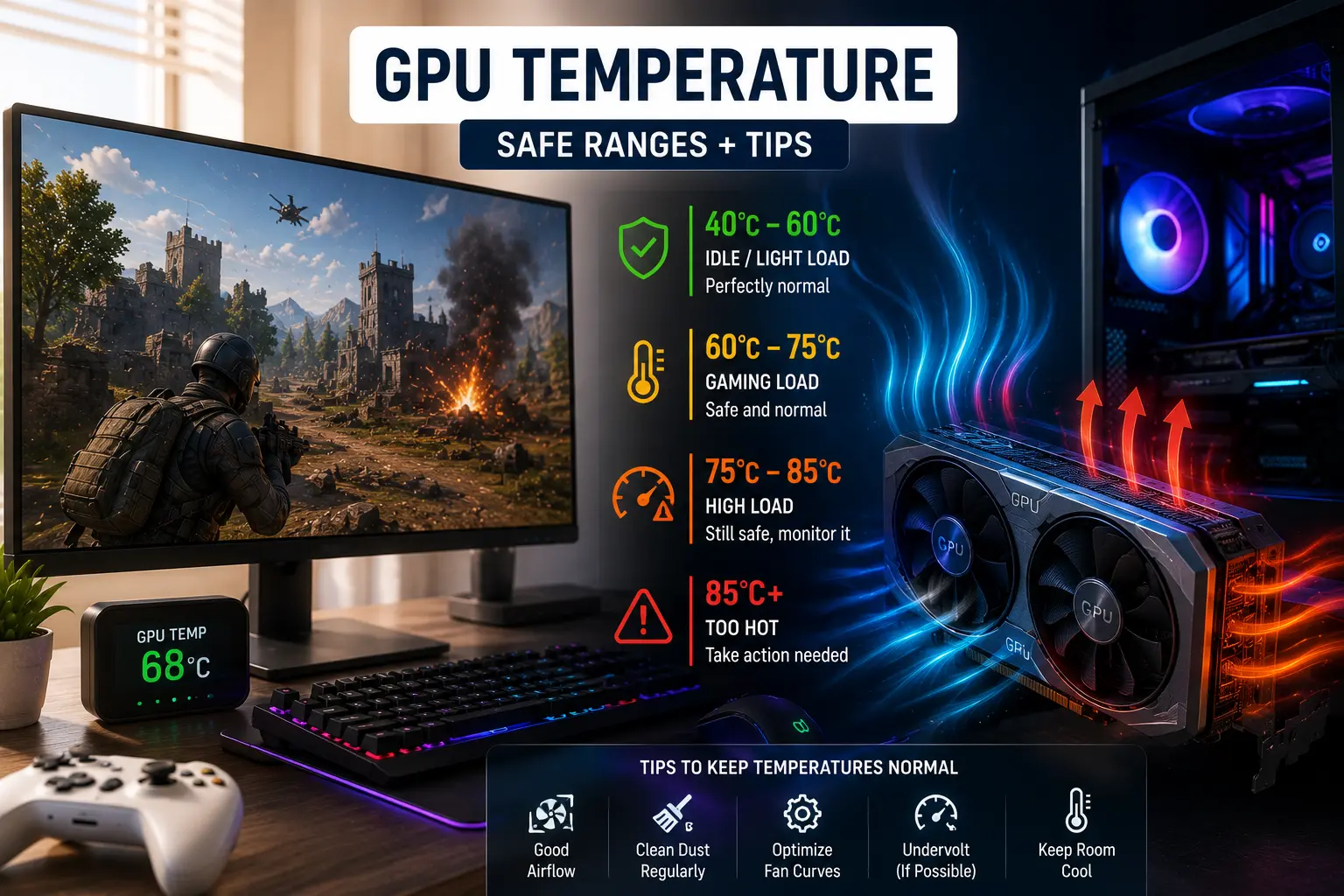
Most modern desktop graphics cards, a normal GPU temp while gaming sits between 65°C and 85°C under sustained gaming load. This is the core temperature, which is the primary number shown in Windows Task Manager, MSI Afterburner, and most overlays.
| Temperature | Rating | What It Means |
|---|---|---|
| 30°C to 50°C | Excellent (idle) | GPU at rest, cooling working well |
| 50°C to 65°C | Good (light load) | Light titles or desktop tasks |
| 65°C to 75°C | Ideal (gaming) | Best balance of performance and thermals |
75°C to 85°C | Normal (gaming) | Safe under heavy load for most GPUs |
| 85°C to 90°C | Elevated | Worth monitoring, not yet dangerous |
| 90°C to 95°C | High | Investigate airflow and fan curve now |
| 95°C and above | Danger zone | Thermal throttling likely, act immediately |
The average GPU temp while gaming reported by users across Reddit, Tom’s Hardware, and Guru3D communities sits around 70°C to 80°C for desktop setups. That community consensus matches manufacturer specifications across both NVIDIA and AMD.
NVIDIA Safe Temperature Ranges
NVIDIA and AMD use different thermal philosophies. What reads as dangerously hot on one platform may be completely normal on the other. Getting this wrong causes unnecessary panic or, worse, misses a real problem.
NVIDIA designs its consumer GPUs to prioritize quiet operation and lower temperatures. Their cards typically thermal throttle around 83°C to 90°C on the core, using that temperature headroom to boost clocks efficiently.
NVIDIA safe GPU temp while gaming by series:
| GPU Series | Safe Core Range | Throttle Point |
|---|---|---|
| RTX 50 Series (5070, 5080, 5090) | 65°C to 80°C | Around 83°C |
| RTX 40 Series (4060, 4070, 4080, 4090) | 65°C to 83°C | Around 87°C |
| RTX 30 Series (3060, 3070, 3080, 3090) | 70°C to 84°C | Around 87°C to 90°C |
| RTX 20 Series and older | 70°C to 85°C | Around 88°C |
The RTX 4090 is worth noting separately. It draws massive power and hitting 85°C is not unusual for this card under 4K load. Proper case airflow is non-negotiable on high-TDP cards above 300 watts, especially when paired with a best AM5 CPU for a balanced high-end build.
For VRAM temperature on NVIDIA, GDDR6X memory on the RTX 4090 is rated to handle up to 110°C, though staying below 95°C is better for long-term health. Always monitor VRAM alongside core temperature, especially on high-end cards where VRAM heat drives crashes and graphical corruption before core temp even looks concerning.
Proper case airflow is non-negotiable on high-TDP cards above 300 watts, especially when paired with a high-end processor. If you’re planning a new Ryzen build, see our Best AM5 CPU guide for the top gaming CPUs.
AMD Safe Temperature Ranges
AMD takes a fundamentally different thermal approach. Their RDNA 2 and RDNA 3 architectures allow higher hotspot and junction temperatures by design, not as a sign of a problem. Many users who switch from NVIDIA to AMD mistake this for overheating.
AMD safe GPU temp while gaming by series:
| GPU Series | Safe Edge (Core) Range | Junction (Hotspot) Normal |
|---|---|---|
| RX 7000 Series (RDNA 3) | 65°C to 85°C | Up to 105°C by design |
| RX 6000 Series (RDNA 2) | 65°C to 85°C | Up to 110°C by design |
| RX 5000 Series (RDNA 1) | 65°C to 83°C | Up to 95°C |
The RX 7900 XTX controversy is worth understanding. When the card launched, some reference models showed junction temperatures hitting 110°C. AMD’s official response was that this is within the card’s design parameters. Later investigation by hardware experts found that some reference cards had vapor chamber manufacturing defects.
Aftermarket cards from PowerColor, Sapphire, and ASUS generally run cooler and do not share this issue. The takeaway: 100°C junction on an RX 7900 XTX from a known AIB partner is not the same situation as 100°C junction on a card with a cooling defect. Context matters.
Core vs Hotspot vs VRAM: Three Temperatures, Three Stories
This is the most important concept for anyone reading conflicting numbers in their monitoring software. Your GPU reports three separate thermal measurements simultaneously, and each one tells you something different.
Core Temperature (Edge Temp) This is the average temperature across the entire GPU die. It is the default reading in Task Manager, GPU-Z, and most overlays. When people say “my GPU is at 78°C,” they mean core. For gaming, keep this under 85°C on NVIDIA and under 85°C edge on AMD.
Hotspot Temperature (Junction Temp) This is the highest temperature reading from any single sensor on the GPU die. It is always higher than core and always shown separately in HWiNFO64. A normal hotspot delta, meaning the gap between core and hotspot, sits at 10 to 15°C on a healthy NVIDIA card. AMD RDNA 2 and RDNA 3 cards can show a 25 to 30°C delta by design.
An RTX 4070 at 75°C core with 88°C hotspot shows a 13°C delta. That is healthy. An RX 7900 XTX at 70°C core with 95°C junction shows a 25°C delta. That is also healthy for this specific architecture.
If the delta on your NVIDIA card suddenly grows from 12°C to 25°C compared to when you bought it, that usually points to degraded thermal paste, thermal pad pump-out, or uneven heatsink pressure. Repasting typically closes the gap by 5 to 15°C.
VRAM Temperature (Memory Junction) This is the heat generated by your video memory chips. It matters most during 4K gaming, ray tracing, and high-resolution texture loads. For most cards, keeping VRAM below 95°C is the target. GDDR6X on high-end NVIDIA cards is rated to 110°C, but sustained operation above 95°C accelerates memory degradation over time.
If you see stuttering, graphical corruption, or crashes during VRAM-heavy scenes but your core temperature looks fine, check your VRAM temperature in HWiNFO64 before assuming the problem is elsewhere.
Laptop GPU Temperature: A Different Standard
If you game on a laptop, forget the desktop numbers entirely. Laptop GPU temperatures run higher because of physical constraints.
Laptop GPUs share cooling systems with the CPU, sit in compact chassis with limited fan clearance, and push hot air through smaller vents. A laptop GPU hitting 85°C under gaming load is completely normal and expected. The safe range for laptop GPUs while gaming is 75°C to 90°C.
For demanding AAA titles at high settings, 85°C to 90°C on a laptop is typical. Above 95°C on a laptop under sustained load warrants attention, usually because cooling vents are blocked, fans are clogged with dust, or thermal paste has dried after years of use.
Keeping a gaming laptop on a flat, hard surface and using a cooling pad can reduce temperatures by 3 to 8°C on average, which matters more on a device where headroom is already tighter.
What Causes High GPU Temperatures While Gaming?
Many players ask how hot is too hot for a GPU before even knowing what their current temperature is. The short answer: above 90°C core on a desktop is where you start having a real problem. Here is what actually causes high temperatures once you cross that line.
Dust buildup. Dust traps heat against the heatsink fins and reduces airflow across the GPU fans. A compressed air clean every 6 to 12 months can drop temperatures by 5 to 15°C instantly. This is always the first thing to check.
Poor case airflow. A case with blocked intake paths or no front fans creates warm, stagnant air around the GPU. Two to three intake fans at the front and one to two exhaust fans at the rear and top create a clean front-to-back airflow path.
Dried thermal paste. Thermal paste between the GPU die and heatsink transfers heat effectively when fresh. After 2 to 3 years of use it dries, cracks, and loses conductivity. If your GPU temperatures have risen gradually over the past year without any hardware changes, dried thermal paste is the most likely cause.
Degraded thermal pads. On RTX 30 and 40 Series cards, thermal pad pump-out has been documented after extended use. Replacing pads with correct-thickness replacements brings hotspot temperatures back into normal range. Using the wrong thickness causes worse contact, not better, so always check the manufacturer specification before replacing pads.
Passive fan curve. Most GPUs ship with conservative default fan curves to minimize noise. Setting a more aggressive curve in MSI Afterburner ramps the fans earlier, before temperatures climb into the upper range rather than after.
7 Steps to Lower Your GPU Temperature
These are ordered from easiest and cheapest to most involved.
1. Clean with compressed air. Hold all fans still before blowing compressed air through the heatsink fins. Do this every 6 months minimum. Potential temperature drop: 5 to 15°C. Costs almost nothing and takes 10 minutes.
2. Improve case airflow. Add intake fans to the front of your case if slots are empty. Route cables away from airflow paths. A clean positive-pressure airflow system is the cheapest case modification that delivers consistent thermal improvement. Potential drop: 3 to 8°C.
3. Set a more aggressive fan curve. Open MSI Afterburner, navigate to fan settings, and build a custom curve that ramps fans to 70 percent speed by 70°C rather than waiting until 80°C or above. The GPU runs louder under load, but temperatures drop meaningfully. Potential drop: 5 to 10°C.
4. Undervolt your GPU. Undervolting through MSI Afterburner’s curve editor reduces voltage at a given clock speed, which directly lowers heat output. Testing across multiple RTX 40 Series cards shows that running 0.925V at stock clocks maintains around 98 percent of performance with significantly less heat. This is the most effective software-only fix for high GPU temperatures and carries no hardware risk. Potential drop: 8 to 15°C.
5. Replace thermal paste. This requires removing the GPU cooler, cleaning old paste from the die and heatsink contact point, applying new paste, and reassembling. Quality pastes like Arctic MX-6 or Thermal Grizzly Kryonaut are the standard recommendations across hardware communities. If your card is over two years old and temperatures have risen gradually, this is the fix. Potential drop: 4 to 8°C on core, up to 15°C on hotspot.
6. Upgrade or add case fans. Cases with poor airflow design limit what any cooling system can achieve regardless of fan speed. Upgrading to a case with mesh front panel and three intake fans makes a measurable difference on high-TDP cards. Potential drop: 5 to 12°C.
7. Consider underclocking or water cooling. For cards that remain above 85°C after all the above steps, reducing the core clock offset in Afterburner lowers power draw and heat. For a permanent solution, aftermarket GPU water blocks exist for most popular cards and drop core temperatures by 20 to 30°C while eliminating GPU noise entirely.
How to Monitor GPU Temperature
MSI Afterburner is the standard tool for real-time GPU monitoring. It shows core temperature, hotspot, VRAM usage, GPU load, and fan speed. It also enables custom fan curves and overclocking. Download directly from the MSI official site.
While monitoring your graphics card, it’s also worth checking your processor. Our Normal CPU Temperature While Gaming guide explains the safe temperature range for modern Intel and AMD CPUs.
HWiNFO64 gives the most detailed hardware monitoring available. It shows core, hotspot, and VRAM temperature simultaneously, which is especially important for AMD card owners where junction readings matter more than core alone. This is the tool to use if you want the full picture of your GPU’s thermal state.
Windows Task Manager shows a basic GPU temperature reading under the Performance tab with no installation required. It only displays core temperature and is useful for a quick check, not for serious monitoring.
GPU-Z from TechPowerUp shows GPU core temperature, memory temperature, and detailed card specifications. It is lightweight and useful for quick spot checks without the overhead of a full monitoring suite.
Frequently Asked Questions
Conclusion
A normal GPU temp while gaming is 65°C to 85°C for most modern desktop graphics cards. Under 75°C is ideal. Between 75°C and 85°C is normal under heavy load. Above 85°C consistently means your cooling has room for improvement. Above 90°C means action is needed.
The GPU temperature gaming safe range differs by manufacturer. NVIDIA throttles around 83°C to 90°C core. AMD tolerates higher hotspot temperatures by design, with RDNA 3 junction temps reaching 100°C to 110°C as a normal operating condition. Always look at all three readings, not just core temperature, because a GPU with a clean core reading but elevated hotspot or VRAM temperature is telling you something important that a single number would hide.
Clean your card every 6 months. Set a sensible fan curve. Undervolt if your temperatures run consistently above 80°C. Those three habits keep any GPU running at healthy temperatures for years longer than passive neglect allows.