How to Tune Up Your PC: Make an Old PC Feel New (2026)
Most slow PCs don’t need new parts — they need maintenance. Microsoft’s own performance guidance comes back to the same fundamentals: install your updates, run a malware scan, free up storage, uninstall apps you never open, trim your startup programs, and restart (summarised via eweek.com, September 2026). Microsoft adds its own caveat, worth hearing plainly: these steps “will not turn outdated hardware into a new PC.” Do the maintenance properly and plenty of old PCs feel new again.
This guide walks you through how to tune up your pc in the order that matters: the free 10-minute Windows tune-up, the tools to avoid, the safe driver and BIOS update order, physical cleaning, and — when software genuinely can’t fix it — the hardware signals that say it’s time to spend money.
How to Tune Up Your PC: The 10-Minute Free Checklist
Start with Task Manager, not a tweak guide. The master rule, per tech2geek.net (October 2026): identify the bottleneck before changing the system. Open Task Manager (Ctrl + Shift + Esc), check the Processes tab, and see what’s eating your CPU, RAM, and disk. Don’t apply dozens of tweaks blindly — these six steps cover what matters:
- Disable startup freeloaders (2 minutes, biggest win). In Task Manager, open the Startup apps tab and disable everything you don’t need at boot — game launchers, chat apps, updater utilities. They load into memory and compete for your disk at startup. Guides across the board, including smashingapps.com and geeky-gadgets.com, rate this the single highest-impact quick fix.
- Free up storage, then automate it. Open Settings → System → Storage and turn on Storage Sense so temp files, the Recycle Bin, and old update downloads get cleaned on a schedule (billshometech.com’s tune-up checklist). Aim to keep at least 20% of your system drive free — Windows needs that breathing room for defragmentation and cleanup (webpronews.com).
- Switch to Best performance power mode. Settings → System → Power & battery → Power mode → Best performance stops Windows throttling your CPU to save energy (eweek.com, September 2026). On a laptop, use it while plugged in.
- Reduce visual effects. Search the Start menu for “Adjust the appearance and performance of Windows” and pick Adjust for best performance — this kills the animations and transparency that consume CPU and GPU on older hardware (eweek.com; smashingapps.com).
- Limit background apps. In Settings → Apps → Installed apps, open an app’s Advanced options and set Background apps permissions to Never for anything that doesn’t need to run when closed.
- Restart — properly. Not sleep, not hibernate. A full restart clears memory leaks, resets stuck background processes, and finishes pending updates. If your PC has been “on” for weeks, this alone can be the fix.
Two things to skip: ReadyBoost, which is pointless on SSD and NVMe systems (tech2geek.net, October 2026), and anything promising a single magic slider. If the slowness followed a Windows update, wait a day for the search index to finish rebuilding, then try toggling Fast Startup off and on in the power options (smashingapps.com).
Stop: Don’t Run Random “Debloat Scripts”
Search “how to tune up your pc” and you’ll find scripts promising to unlock hidden performance by stripping Windows to the bones. Here’s the honest warning: you don’t need them. Everything that actually helps — uninstalling unused apps (Settings → Apps), disabling startup and background permissions, Storage Sense — is already built into Windows.
Random debloat scripts from the internet can break Windows Update, the Microsoft Store, and components you rely on — and they’re a well-known malware vector. A script promising to “unlock hidden performance” can just as silently disable the services that keep Windows patched and working. The checklist above achieves the same results without the risk.
Drivers, BIOS, and Firmware: The Safe Update Order
Outdated drivers cause real-world slowness — stuttering games, flaky Wi-Fi, devices that randomly disconnect. Updating them is part of every tune-up, but order and caution matter more than speed.
- Windows Update first. Let it install OS updates and the driver updates it offers. Many stability and performance fixes arrive this way.
- Chipset driver second. Get it from your motherboard or laptop manufacturer’s support page — not a generic download site. The same ordering rule from PC build guides applies here: installing the GPU driver before the chipset driver invites avoidable conflicts (tech-insider.org, October 2026).
- GPU driver third. NVIDIA, AMD, and Intel all release driver packages tested against current Windows builds. Use the “clean installation” option rather than layering the new driver over the old one — webpronews.com specifically recommends this, since leftover driver files are a classic cause of crashes and stutter.
- BIOS and firmware last — and only with a reason. A BIOS update is not routine maintenance. Do it when there’s a concrete reason: support for a new CPU, a security fix, or a bug you’re actually hitting. Never on a laptop running on battery, never during unstable power, and never power off mid-update — an interrupted flash can brick the board.
What this means: Windows Update → chipset → GPU → BIOS is the safe ladder. Two optional, advanced steps after a bad update: the System File Checker (SFC) and DISM tools can repair corrupted system files, but webpronews.com describes them as tools that “require careful execution” — troubleshooting, not maintenance.
The genuine last resort before spending on parts: a Windows 11 repair install (reinstalls the OS, keeps your files and apps). According to webpronews.com, it “frequently restores performance without requiring a complete wipe.” Back up first anyway.
Physical Cleaning and Repaste Maintenance
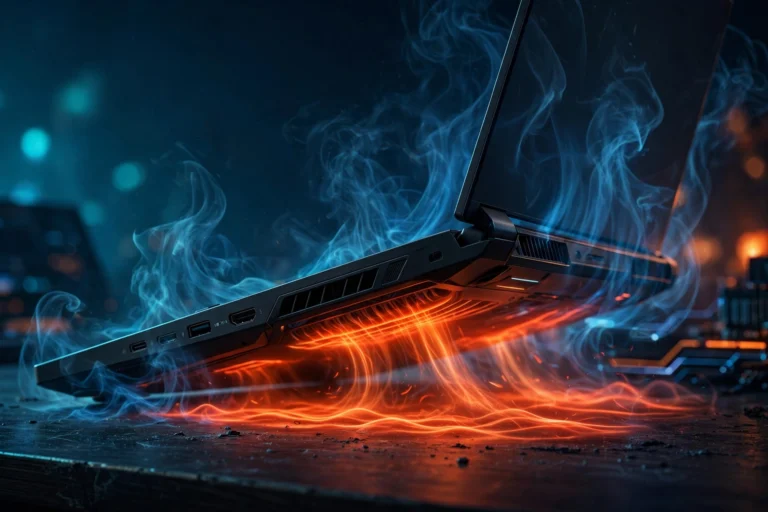
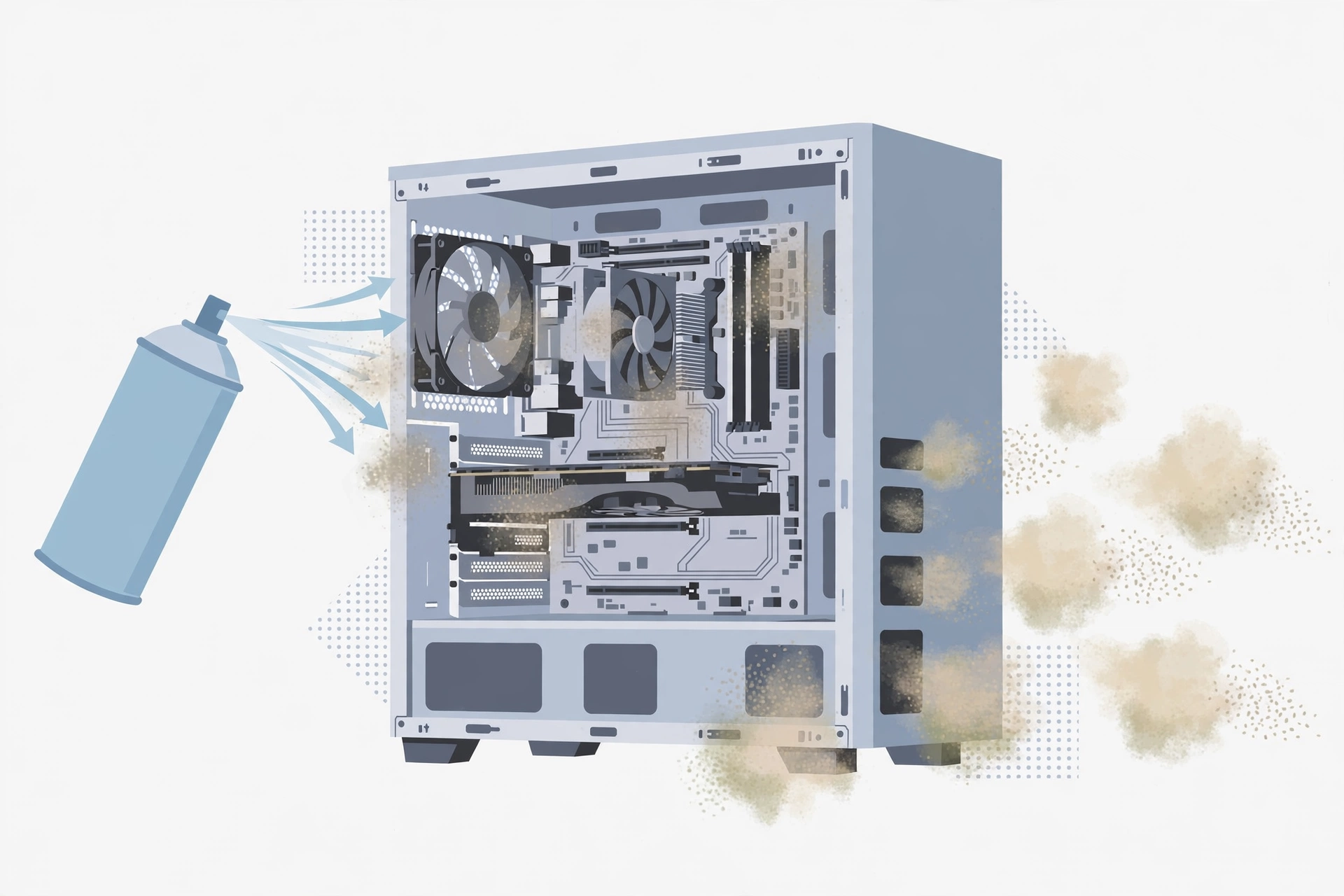
Software can’t fix a PC choking on its own dust. Once or twice a year, power down, take the machine outside, and blow dust out of the vents, fans, and heatsinks with compressed air — short bursts, holding fan blades still. A PC that runs hot slows itself down on purpose (thermal throttling), so this is real performance maintenance, not housekeeping.
Thermal paste is the longer-cycle item: repasting the CPU (and GPU, on desktops) is a 2–3 year maintenance item on a heavily used machine, not a monthly ritual — old paste dries out and temperatures creep up. Two honest caveats: opening a laptop can void its warranty, so check yours first; and if you’ve never repasted, a local repair shop will do it cheaply. Phase-change pads like PTM7950 are the current enthusiast pick for laptops — near-liquid-metal thermal performance without the short-circuit risk (wccftech; makeuseof.com).
If cleaning doesn’t fix high temperatures, our guide to fixing gaming laptop overheating covers the fan curves and cooling-pad questions cleaning can’t answer.
When Software Stops Helping: The Hardware Signals
Every PC hits the point Microsoft warned about: maintenance done right, machine still slow. Read the signals honestly instead of guessing:
- Still on a mechanical hard drive? That’s the #1 signal. Moving Windows to an SSD is, in tech2geek.net’s words (October 2026), “the more meaningful upgrade” than any amount of settings tweaking. No driver update competes with it — it’s the single upgrade that makes a five-year-old PC feel new.
- RAM pinned at 90%+ in Task Manager? That’s the second signal — the PC is constantly swapping to disk, and more memory ends the thrashing (tech2geek.net, October 2026).
- Still overheating under load after cleaning? The cooler may be failing or undersized for what you ask of it — time for a better cooler, a repaste, or professional service.
- CPU from a decade ago on a dead-end motherboard? Then no upgrade path exists — the honest fork is whether to upgrade the GPU or replace the machine entirely, and our guide “Should You Upgrade Your GPU or Build a New PC?” answers exactly that question.
What this means: a tune-up tells you the truth about your hardware. If the checklist gets you most of the way there, the machine had maintenance debt. If it barely moves the needle, Task Manager evidence — not guesswork — tells you which part is the bottleneck. And before you spend on it, our guide to how much your PC is worth helps you price the old machine realistically.
Frequently Asked Questions
How often should I tune up my PC?
Run the quick checklist — startup apps, Storage Sense, updates, a proper restart — every two to three months; it takes about ten minutes once you’ve done it before. Check drivers only when something misbehaves or a major Windows update lands; BIOS only when there’s a reason. Physical cleaning once or twice a year is enough.
Will tuning up my PC delete my files?
No — none of the maintenance steps touch your documents, photos, or games. Storage Sense only removes temp files, Recycle Bin contents, and old update files. The repair install keeps your files and apps too, but back up important data first anyway: it’s the one step where failure has real consequences.
Are PC “optimizer” or “booster” programs worth it?
No. Every reputable guide lands in the same place: Windows already contains everything a tune-up needs, and third-party optimizers add risk without adding results. Random debloat scripts can break Windows Update and core components, and optimizers are a common junkware vector. Save your money — the built-in tools are the whole toolkit.
At what point should I upgrade instead of tuning up?
When Task Manager shows a hardware wall: a mechanical hard drive (SSD is the fix), RAM constantly maxed out (add memory), or temperatures that won’t come down after cleaning (cooler or service). If the whole platform is a decade old with no upgrade path, stop tuning and read our guide on whether to upgrade your GPU or build a new PC instead.
The Bottom Line
A PC tune-up is a maintenance routine, not a miracle — but it’s the routine most slow PCs are missing. Do the ten-minute checklist, keep drivers current in the right order, update the BIOS only with a reason, clean the dust out, and let Task Manager tell you the truth about your hardware. When software stops helping, the signals above tell you exactly which part deserves your money.
Next steps: find out how much your PC is worth before spending on upgrades, and if the answer points at the graphics card, see whether to upgrade your GPU or build a new PC in 2026.