What Is a Good Upload Speed for Gaming? (Numbers + Tips)
Everyone talks about download speed. ISPs put it on their banners. Speed tests flash it first. But ask a gamer who just got kicked from a ranked match mid-round, and the real culprit is usually something quieter: upload speed.
Does upload speed matter for gaming? More than most people think. This guide breaks down exactly what a good upload speed for gaming looks like, what the numbers mean for different setups, and how to actually fix the problem if yours falls short.
What Does Upload Speed Actually Do in Gaming?
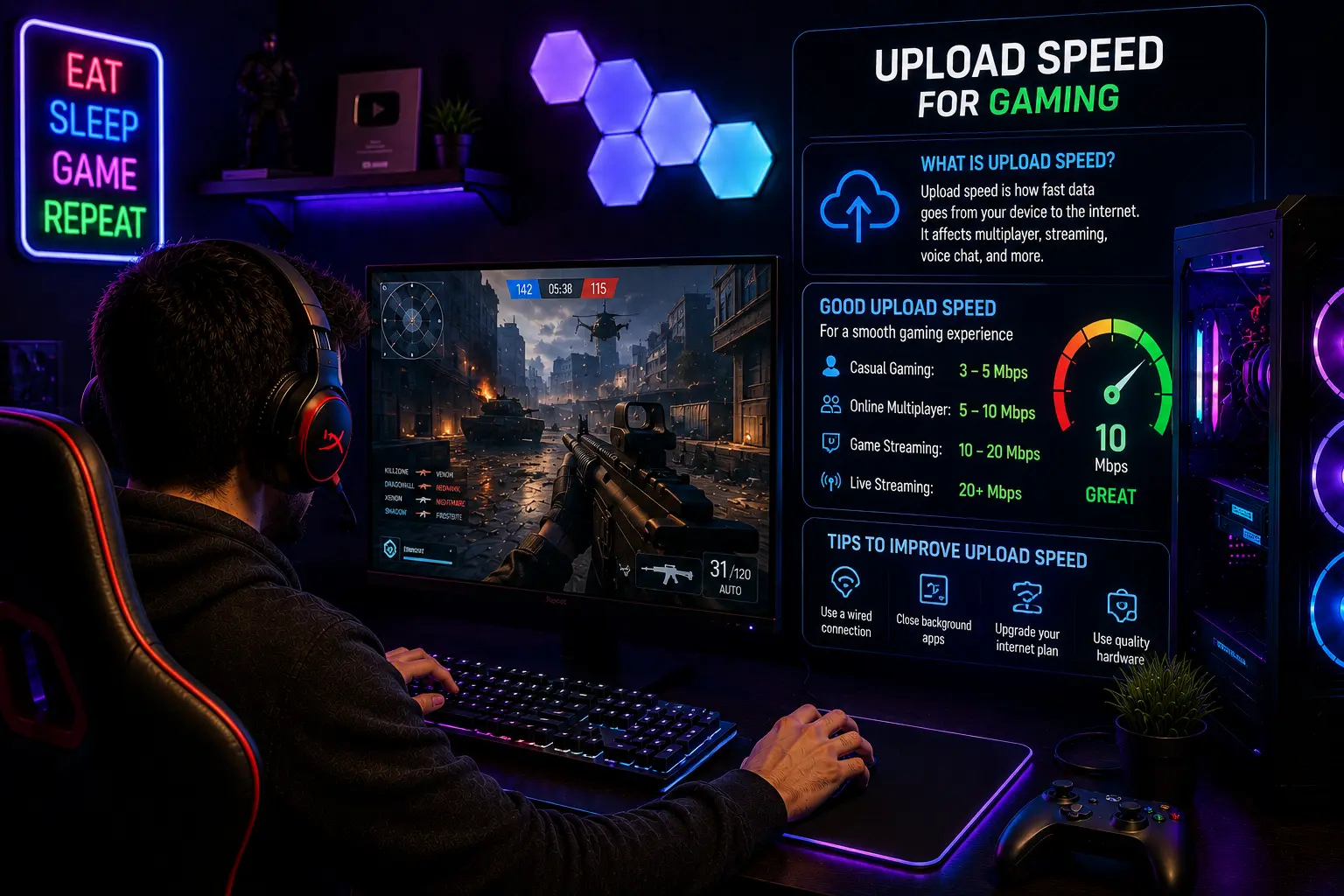
Download speed controls how fast data comes to you. Upload speed controls how fast your data goes out. In gaming, that means every button press, movement input, voice chat packet, and player action you send to the game server travels on your upload connection.
When your upload speed is too low or unstable, the server receives your inputs late. In a fast-paced shooter, that delay shows up as lag, rubber banding, or your character appearing to teleport from an opponent’s perspective. You might feel fine on your end but register as a laggy player on everyone else’s screen.
Upload speed also carries:
- Voice chat data through Discord, party chat on PS5 or Xbox
- Gameplay clips auto-uploading to cloud storage in the background
- Stream data if you broadcast on Twitch, YouTube, or Facebook Gaming
- Remote Play signals if you use PS5 Remote Play or Xbox Remote Play
All of these compete for the same upload pipe at the same time.
What Is a Good Upload Speed for Gaming?
The honest answer depends on what you do while gaming. Here is how it breaks down by use case:
Casual gaming only: A good upload speed for gaming at this level is 3 to 5 Mbps. Most online games send less than 1 Mbps of actual game data upstream during a match. The extra headroom covers background uploads, cloud saves, and voice chat without them competing with your game traffic.
Competitive gaming: Target 5 to 10 Mbps upload. Competitive sessions often run longer, voice chat is more active, and the margin for input delay is zero. Stable upload matters more here than raw speed, but having 5 to 10 Mbps gives enough buffer so background tasks never dip into your gaming bandwidth.
Gaming while streaming on Twitch or YouTube: This is where upload speed really counts. A 1080p60 stream at a decent bitrate needs 6 to 8 Mbps upload on its own, before the game, voice chat, or anything else uses any. Aim for 15 to 25 Mbps total upload to run game plus stream plus Discord comfortably, without compromising stream quality under load.
Gaming as a content creator or power user: If you upload highlights, run OBS, stream in 1440p, and talk on Discord simultaneously, 35 Mbps or more upload gives you room to scale without managing bandwidth constantly.
Good Upload Speed for Gaming by Use Case
| Use Case | Minimum Upload | Recommended Upload |
|---|---|---|
| Casual online gaming | 1 Mbps | 3 to 5 Mbps |
| Competitive gaming | 3 Mbps | 5 to 10 Mbps |
| Gaming plus Twitch streaming | 8 Mbps | 15 to 25 Mbps |
| Gaming plus streaming plus Discord | 12 Mbps | 25 to 35 Mbps |
| Power users and content creators | 20 Mbps | 35 Mbps or more |
Upload Speed Gaming Requirements by Platform
Different platforms have their own official upload speed gaming requirements. These numbers are the floor, not the goal. Meeting the minimum gets you online. Meeting the recommended gets you a smooth session.
PlayStation 5: Sony recommends a minimum of 5 Mbps upload for PS5 Remote Play and online features. For stable online multiplayer and voice chat, real-world testing shows 10 Mbps upload is a more reliable target. PS5 games are 80 to 120 GB and auto-update in the background, which pulls from your upload pipe when syncing cloud saves.
Xbox Series X and Series S: Microsoft recommends 4.5 Mbps upload for Xbox Remote Play, with 9 Mbps or more as ideal. For Xbox Cloud Gaming, stable upload keeps your inputs reaching the server cleanly. Series X supports Wi-Fi 6, so a capable router matters as much as the plan itself.
Nintendo Switch: The Switch requires only 0.5 Mbps upload at minimum. Competitive Switch titles like Splatoon 3 and Super Smash Bros. Ultimate benefit from 3 to 5 Mbps upload and a stable, low-jitter connection more than raw speed.
PC Gaming: PC requirements vary by game. Most multiplayer titles on Steam need 1 to 3 Mbps upload for active gameplay. Steam Remote Play Together suggests 10 to 30 Mbps if you are hosting remote sessions for others. Streamers on PC should plan around their OBS bitrate settings first, then check they have enough headroom above that for the game itself.
Does Upload Speed Matter More Than Download Speed?
For most gamers, download speed gets the headline but upload speed causes the actual problems. Here is why.
Download speed handles incoming data, which games use in large amounts during downloads and updates, but only a few Mbps during live gameplay. Upload speed handles outgoing data, which is everything your device actively sends while you are in a match. An asymmetrical connection, like most cable plans, gives you far more download than upload.
Fiber connections are symmetrical, meaning upload and download speeds match. A fiber plan at 200 Mbps typically delivers 200 Mbps upload too. This is why fiber feels smoother for gaming households even when the download number looks the same on paper as a cable plan. If fiber or cable isn’t available in your area, our Is Starlink Good for Gaming? guide explains what upload performance and latency you can expect from satellite internet.
What Upload Speed Do I Need for Gaming While Streaming?
This is the question every aspiring content creator runs into eventually, and the answer is more specific than most guides give.
Your total upload need is: stream bitrate + game upload + voice chat + buffer headroom.
A 1080p60 stream at good quality uses 6 Mbps. The game itself uses 1 to 3 Mbps. Discord voice uses roughly 0.1 to 0.5 Mbps. Buffer headroom to avoid drops during peak ISP traffic hours should be at least 20 to 30% of total. That brings a realistic minimum to around 10 to 12 Mbps and a comfortable target to 15 to 20 Mbps for 1080p streaming.
Streaming at 1440p or running multiple encoding passes in OBS pushes that number higher. Streamers targeting broadcast quality should plan for 25 Mbps or more upload to avoid dropped frames under real load conditions.
Upload Speed Needed for Gaming and Streaming Combined
| Stream Quality | Stream Bitrate | Game + Chat | Total Needed | Comfortable Target |
|---|---|---|---|---|
| 720p30 | 3 Mbps | 2 to 3 Mbps | 6 Mbps | 10 Mbps |
| 1080p60 | 6 Mbps | 3 to 5 Mbps | 10 Mbps | 15 to 20 Mbps |
| 1440p60 | 9 to 12 Mbps | 3 to 5 Mbps | 14 Mbps | 20 to 25 Mbps |
| 4K streaming | 15 to 25 Mbps | 3 to 5 Mbps | 20 Mbps | 30 to 35 Mbps |
How to Test and Fix Your Upload Speed for Gaming
Step 1: Run a proper speed test Go to Speedtest by Ookla or Fast.com and run the test three times at different points in the day. Peak hours, typically 7 to 10 PM, show your real-world upload speed under load. One clean result at noon means nothing if your upload drops at 9 PM when the neighborhood is online.
Step 2: Check upload separately from download Many people only look at the download result. Write down your upload number specifically. If it is consistently below 5 Mbps on a plan that should give you more, the issue may be your router, your Wi-Fi band, or line quality rather than your plan tier.
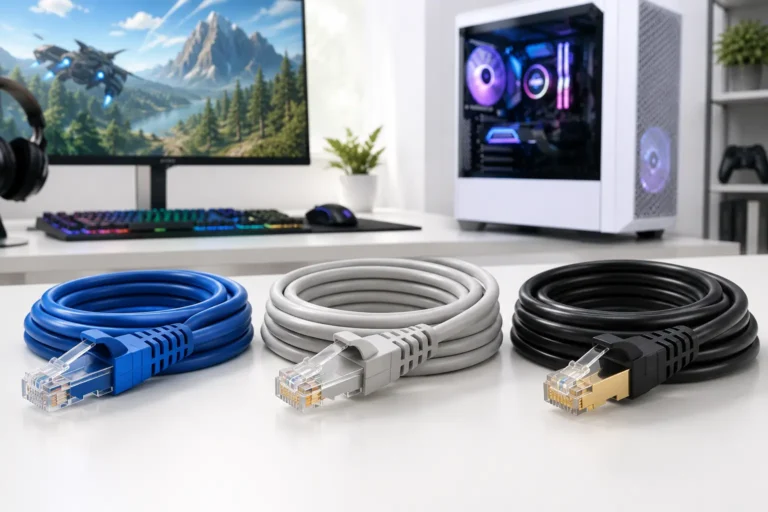
Step 3: Switch to a wired connection A Cat6 or Cat7 Ethernet cable between your router and gaming device removes Wi-Fi variability from your upload entirely. Wi-Fi, especially on the 2.4 GHz band, loses upload consistency through walls and interference. Wired connections deliver full upload speed with much lower jitter.
Step 4: Upgrade your router if needed Older routers bottleneck upload before it ever reaches your device. A router with Wi-Fi 6 or Wi-Fi 6E support handles multiple simultaneous uploads and downloads more efficiently, reduces interference in busy households, and delivers more consistent upload performance without saturating under load.
Step 5: Use QoS settings Quality of Service settings on modern routers let you prioritize gaming traffic above background uploads like cloud backups, phone syncing, and streaming. This means your game inputs get first access to your upload pipe even when other devices are competing for the same bandwidth.
Frequently Asked Questions
Conclusion
Upload speed gets ignored because it is smaller and quieter than download speed. But it is the direction your game actually travels in, and when it runs short or goes unstable, the match feels wrong even when your ping looks fine on paper.
A good upload speed for gaming starts at 3 to 5 Mbps for casual play and climbs toward 15 to 25 Mbps if you stream. Platform upload speed gaming requirements give you the floor. Real-world usage, household load, and stream quality give you the ceiling. Build toward the ceiling and you will not have to think about upload speed again.