Normal CPU Temperature While Gaming (Safe Temps for All CPUs)
You check your normal CPU temperature while gaming in the middle of a session and see 85°C. Your first instinct is panic. Your second is to search whether your PC is about to die.
The honest answer: probably not. But context matters a lot here, because what is normal cpu temp while gaming on a Ryzen 9 9950X3D is a warning sign on an older Core i5. This guide gives you the real numbers by CPU generation, the official TjMax limits from Intel and AMD, and exactly when to take action versus when to close the monitoring software and keep playing.
What Is a Normal GPU Temp While Gaming?
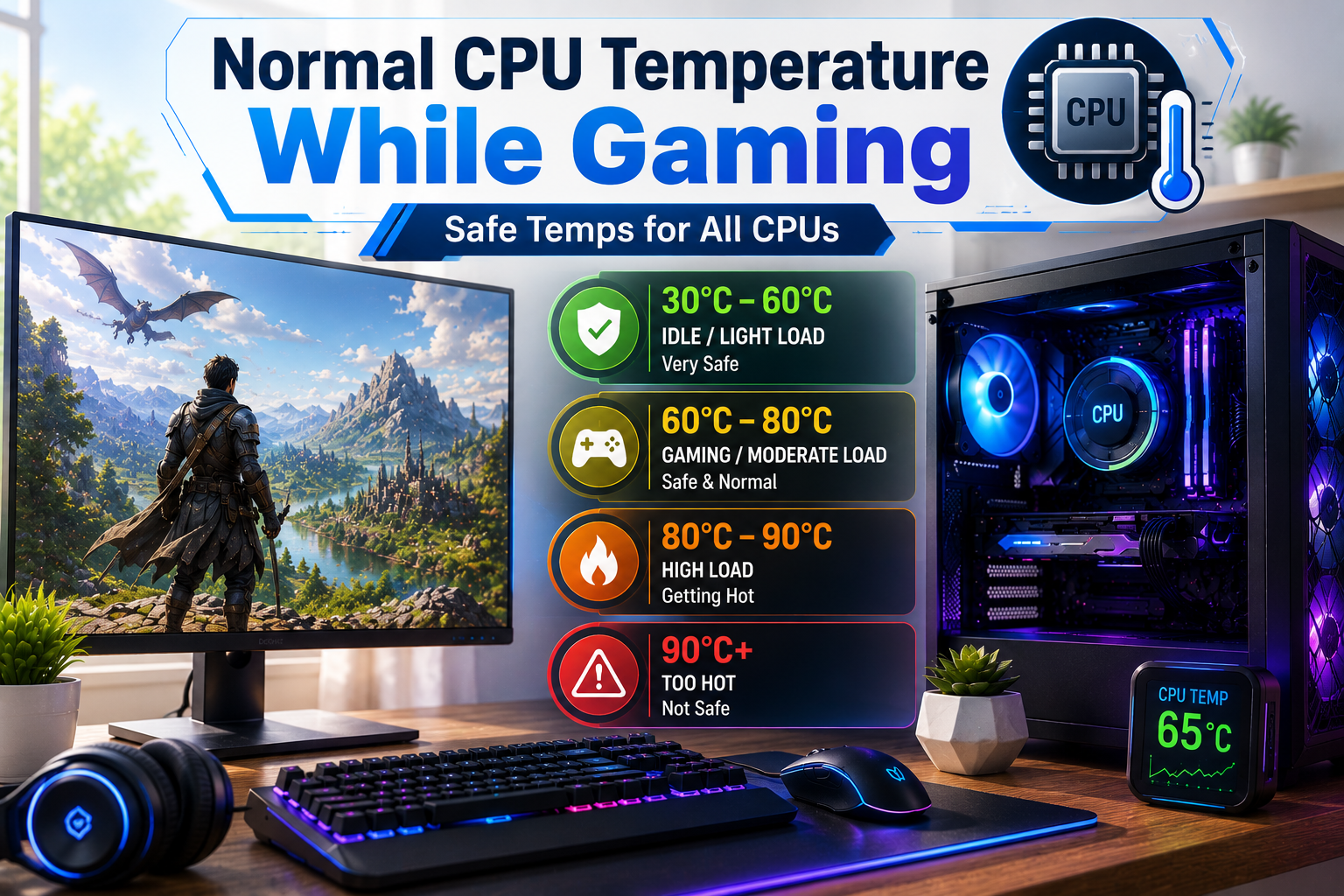
The normal cpu temp while gaming for most modern desktop processors sits between 65°C and 85°C under sustained gaming load. That range covers the majority of setups with reasonable cooling, whether that is a decent air tower or an entry-level AIO.
Normal CPU Temperature Ranges by Workload
| Workload | Normal Range (Desktop) | Normal Range (Laptop) |
|---|---|---|
| Idle / desktop use | 30 to 45°C | 40 to 55°C |
| Light gaming (esports titles) | 55 to 70°C | 60 to 75°C |
| Heavy gaming (AAA open-world) | 70 to 85°C | 75 to 90°C |
| Stress test / full all-core load | 80 to 95°C | 85 to 95°C |
These numbers apply to both AMD Ryzen 9000-series and Intel Core Ultra 200-series under standard air or AIO liquid cooling according to 2026 thermal guides. Idle above 55°C suggests dust or airflow problems. Gaming consistently above 85°C on a desktop warrants investigation. Gaming consistently above 90°C on a laptop means cooling needs attention.
Intel vs AMD: Different Chips, Different Rules
This is where most people get confused. Intel and AMD have different thermal philosophies, and a temperature that is alarming on one platform is completely by design on another.
Intel Core Ultra 200 Series (Arrow Lake)
Intel’s official maximum junction temperature, called TjMax, for the Core Ultra 200 series is 105°C. The CPU will begin thermal throttling as it approaches this limit, automatically pulling back clock speeds to protect itself.
Real-world gaming temperatures for current Intel chips:
- Core Ultra 5 245K and Ultra 7 265K: 60 to 75°C while gaming
- Core Ultra 9 285K: 68 to 80°C while gaming
- Anything under 95°C during heavy gaming is within Intel’s designed operating range for these chips
Intel’s philosophy has traditionally favored a cooler baseline, using thermal throttling as a last resort rather than a routine behaviour. If your Intel CPU regularly hits 90°C during gaming with a capable cooler, something is worth investigating, usually dust, dried thermal paste, or airflow.
AMD Ryzen 7000 and 9000 Series
AMD takes a different approach. Modern Ryzen CPUs are engineered to push clock speeds aggressively until they approach their TjMax of 95°C, then back off only slightly. Hitting 90°C on a Ryzen 9 9950X3D during a demanding gaming session is not a cooling failure. It is the processor doing exactly what it was designed to do.
Real-world gaming temperatures for current AMD chips:
- Ryzen 5 9600X and Ryzen 7 9700X: 65 to 80°C while gaming
- Ryzen 9 9950X and 9950X3D: 80 to 90°C while gaming
- Ryzen 9 9950X3D has a stricter thermal design than standard Ryzen due to its 3D V-Cache layer, so AMD recommends keeping it closer to the lower end of the range during sustained loads. If you are still choosing hardware, check our picks for the best AM5 CPU for gaming builds with better thermal headroom.
If you’re still choosing your hardware, our Best AM5 CPU guide compares the top gaming processors based on performance, efficiency, and thermals.
Safe CPU Temps While Gaming by Processor Generation
| CPU Generation | TjMax | Normal Gaming Temp | Concern Threshold |
|---|---|---|---|
| Intel Core Ultra 200 (Arrow Lake) | 105°C | 60 to 80°C | Above 90°C sustained |
| Intel 13th and 14th Gen | 100°C | 65 to 85°C | Above 90°C sustained |
| Intel 12th Gen | 100°C | 60 to 80°C | Above 90°C sustained |
| AMD Ryzen 9000 series | 95°C | 70 to 90°C | At or above 95°C |
| AMD Ryzen 7000 series | 95°C | 70 to 90°C | Above 85°C |
| AMD Ryzen 5000 series | 90°C | 65 to 85°C | Above 85°C |
| Older CPUs (pre-2021) | 80 to 90°C | 55 to 75°C | Above 80°C |
What Is Thermal Throttling and Why It Matters
Thermal throttling is the CPU’s built-in self-protection mechanism. When a chip approaches its TjMax, it automatically reduces its clock speed to generate less heat. It is not damage. It is a safeguard. But it costs you performance you paid for.
In gaming, throttling shows up as sudden FPS drops mid-session, stuttering that appears out of nowhere in areas that previously ran fine, or benchmark scores that track lower than expected on the same hardware. One Reddit user described their Intel CPU hitting 89 to 95°C while gaming, with brief clock speed drops to 2.8 GHz every 10 to 20 seconds, showing up as visible hitching in gameplay.
The goal is not just to stay below TjMax. The goal is to stay cool enough that your CPU never needs to throttle at all, because throttling means you are leaving performance on the table every time it happens.
Normal CPU Temperature While Gaming on a Laptop
Laptop CPUs run hotter than desktop chips by design. The physics are simple: less space means less room for heatsinks, fans, and airflow. A temperature that would signal a problem on a desktop is routine on a gaming laptop.
The normal cpu temperature while gaming on a laptop is 75 to 90°C under gaming load. That is higher than the desktop range and expected. Most gaming laptop CPUs have a TjMax of 90 to 100°C, and sustained temperatures below that are within spec.
The laptop threshold that signals real trouble: consistently above 95°C during normal gaming sessions, or regular thermal throttling that causes FPS drops even in titles that should run fine on your hardware. Thin-and-light gaming laptops are more prone to this than larger gaming laptops with wider chassis and better fan coverage.
The most common cause in laptops is degraded thermal paste. Gaming laptops should have their thermal paste replaced every one to two years since the smaller thermal mass means paste degrades faster than on desktop coolers.
How to Check Your CPU Temperature While Gaming
You need to know your actual numbers before deciding whether to act. These tools give you reliable readings:
HWiNFO64 is the most comprehensive option. It shows per-core temperatures, CPU Package temperature, power draw, and throttling indicators all in one window. Use it in sensor-only mode while gaming via the overlay or a second monitor.
Core Temp is lightweight and focused. It shows each core temperature and displays your CPU’s TjMax so you can see exactly how much headroom you have at a glance.
MSI Afterburner overlays temperature data directly on screen during gaming. Set it up once and your CPU and GPU temps appear in the corner of every session without alt-tabbing. If your graphics card temperatures also seem unusually high, check our Normal GPU Temp While Gaming guide to see what range is considered safe.
Always monitor CPU Package temperature, not individual core temperatures. Individual cores can vary by 5 to 10°C between each other. Package temperature shows the hottest point overall and is what approaches TjMax first.
CPU Temperature Monitoring Tools
| Tool | Best For | Cost |
|---|---|---|
| HWiNFO64 | Full thermal data, throttling detection | Free |
| Core Temp | Simple per-core temps with TjMax display | Free |
| MSI Afterburner | In-game overlay while gaming | Free |
Ryzen Master | AMD-specific, official AMD tool | Free |
| Intel XTU | Intel-specific, shows TjMax proximity | Free |
| BIOS / UEFI | Idle temp check without booting Windows | Built-in |
How to Lower CPU Temperature While Gaming
If your cpu temperature range gaming sits too close to TjMax or causes visible throttling, work through these fixes in order from free to paid.
Clean your PC first. Dust buildup on heatsinks and case fans is the most common cause of elevated temperatures and the cheapest fix. Compressed air through the CPU cooler, case fans, and intake filters alone can drop temperatures by 5 to 15°C in a dusty system. Do this before anything else.
Fix your case airflow. At minimum, one intake fan at the front and one exhaust fan at the rear. Cable management matters too. Cables blocking front intake vents restrict airflow significantly and raise CPU temps even on a system that looks fine from the outside.
Set Windows maximum processor state to 99%. Open Power Options, find Change plan settings, then Change advanced power settings. Set maximum processor state from 100% to 99%. This prevents Intel Turbo Boost from running the CPU at full power for sustained periods, lowering temperatures meaningfully in most gaming scenarios with virtually no FPS impact in games.
Replace thermal paste. Thermal paste dries out and loses conductivity over two to three years. Replacing it with a quality compound like Thermal Grizzly Kryonaut or Noctua NT-H2 can drop temperatures by 5 to 10°C on a CPU that has not been repasted since purchase. This is especially impactful on systems two years old or more.
Upgrade your CPU cooler. If the above steps do not bring temperatures into the safe cpu temps while gaming range, the cooler itself is the bottleneck. A budget tower cooler like the Cooler Master Hyper 212 outperforms most stock coolers by a significant margin. For high-TDP chips like the Core Ultra 9 285K or Ryzen 9 9950X, a 240mm or 360mm AIO liquid cooler is a better match for the thermal load.
Consider undervolting. Intel XTU and AMD Ryzen Master both allow voltage adjustments that reduce heat output without meaningfully affecting performance. Undervolting a Ryzen 9 or Intel Core i9 can drop gaming temperatures by 8 to 12°C with zero FPS loss in most titles. It requires patience to test for stability but is one of the most effective thermal improvements available without spending money.
Frequently Asked Questions
Conclusion
The normal cpu temp while gaming is 65 to 85°C for most desktop CPUs and 75 to 90°C for gaming laptops. The average cpu temp while gaming in Fahrenheit is 149 to 185°F for desktops. AMD Ryzen 7000 and 9000 series are designed to run near 90°C by default. Intel Core Ultra 200 series targets a slightly lower gaming range. Older CPUs from before 2021 have stricter safe limits and less tolerance for sustained high heat.
The number to watch is not whether your temperature looks scary. It is whether your CPU is thermally throttling and costing you performance. Monitor CPU Package temperature with HWiNFO64, check your specific chip’s TjMax, and act only if you see sustained temps at the limit or visible FPS drops that track with temperature spikes.