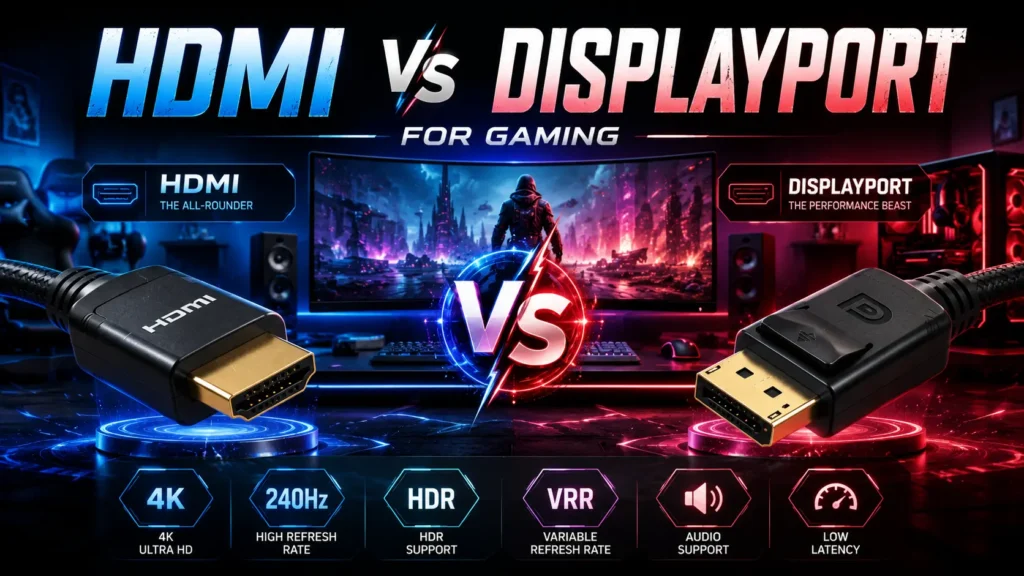
HDMI vs DisplayPort for Gaming: Which Cable Should You Use?
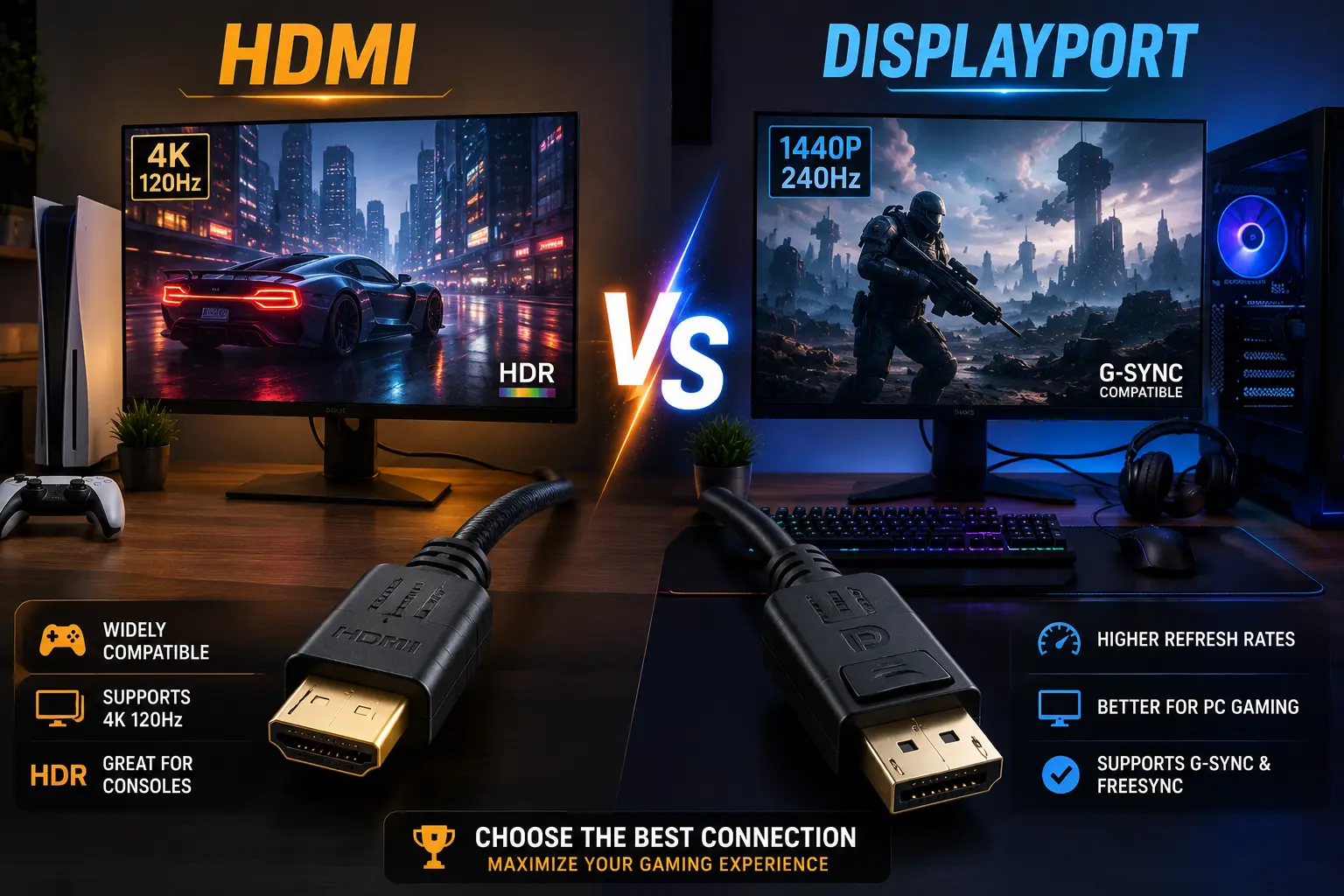
Choose DisplayPort if you play on a PC monitor and want the highest refresh rates. Choose HDMI if you play on a console or a TV. This is the core of the hdmi or displayport for gaming question. DisplayPort wins on bandwidth and refresh rate support. HDMI wins on compatibility and audio features. Your device, not personal taste, should decide the cable.
📢 Key Takeaways
- DisplayPort supports higher refresh rates than most HDMI versions.
- HDMI 2.1 is required for PS5 and Xbox Series X gaming at 4K 120Hz.
- HDMI 2.2 is now the newest official spec, but HDMI 2.1 remains the practical standard for current-gen consoles and monitors.
- DisplayPort connects natively to G-Sync monitors more often than HDMI does.
- HDMI carries advanced audio formats like Dolby Atmos through eARC.
- DisplayPort supports daisy chaining multiple monitors from one port.
- Cable length favors HDMI for long runs without signal loss.
- Most gaming monitors now include both ports, so your GPU output matters too.
- The displayport vs hdmi gaming difference gets smaller with each new HDMI version.
Every gamer eventually asks the same question. Should I use HDMI or DisplayPort for gaming? The answer changes based on your screen, your console, and your goals.
DisplayPort was built for computers. It pushes more data through the cable. This makes it a favorite among PC gamers who chase high refresh rates. HDMI was built for entertainment. It works with TVs, consoles, and sound systems.
Deciding between hdmi or displayport for gaming gets easier once you know what each cable does best.
This guide compares both cables in plain language. You will learn where each one wins. You will also learn where they perform almost the same. By the end, you will know exactly which cable fits your setup.
What Is HDMI?
HDMI stands for High Definition Multimedia Interface. It sends video and audio through one cable. You will find it on TVs, laptops, monitors, and gaming consoles.
HDMI 2.1 is the version that matters most for gaming today. It supports 4K resolution at 120Hz. It also supports Variable Refresh Rate and Auto Low Latency Mode. These features cut screen tearing and input lag.
Older HDMI versions still exist on budget devices. HDMI 1.4 handles 1080p at 120Hz or 4K at only 30Hz. HDMI 2.0 handles 4K at 60Hz. HDMI 2.2 is the newest official spec, adding more bandwidth and higher resolution support, but very few devices use it yet. Always check your cable and port version before buying new gear.
Knowing your HDMI version matters when you weigh hdmi or displayport for gaming decisions later in this guide.
What Is DisplayPort?
DisplayPort, often shortened to DP, is a digital connector made mainly for computers. VESA created it to replace older analog cables and to handle demanding display tasks.
DisplayPort 1.2 supports 1440p at 144Hz, which still covers many mid-range gaming monitors. DisplayPort 1.4 supports 4K at 120Hz using compression. DisplayPort 2.0 and 2.1 push much further. They support 4K at 240Hz or even 8K resolution on capable hardware.
DisplayPort rarely appears on TVs or consoles. You will mostly see it on gaming monitors, laptops, and graphics cards. Many modern gaming laptops also carry DisplayPort signal over a USB-C port, known as DP Alt Mode. If you dock your laptop to an external monitor, check whether that USB-C port supports DP Alt Mode before assuming it works like a full DisplayPort connection.
If you build or upgrade a PC gaming rig, you will use this port often.
How Do HDMI and DisplayPort Differ for Gaming?
The displayport vs hdmi gaming difference comes down to three things. These are bandwidth, refresh rate ceiling, and device compatibility.
| Feature | HDMI 2.1 | DisplayPort 1.4 | DisplayPort 2.1 |
|---|---|---|---|
| Max Bandwidth | 48 Gbps | 32.4 Gbps | 80 Gbps |
| Max Resolution | 8K at 60Hz | 8K at 60Hz (compressed) | 16K at 60Hz |
| Max Refresh Rate at 4K | 120Hz | 120Hz (compressed) | 240Hz+ |
| Console Support | Full (PS5, Xbox) | None | None |
| Multi-Monitor Daisy Chain | No | Yes | No |
| Common Devices | TVs, consoles, monitors | PC monitors, laptops | High-end gaming monitors |
Which Cable Wins for PC Gaming?
DisplayPort usually wins for PC gaming. It offers wider bandwidth, so it handles higher refresh rates more reliably.
Competitive shooters and fast paced games benefit most from high refresh rates. A 240Hz or 360Hz monitor needs a connection that can keep up. DisplayPort has supported these speeds longer than HDMI.
Many gaming monitors also link G-Sync support directly to DisplayPort. If your monitor and graphics card both support DisplayPort, this is usually your best pick.
HDMI 2.1 has closed much of this gap. If your monitor tops out at 144Hz or 4K 120Hz, either cable will work well. The real advantage for DisplayPort appears at the extreme high end.
Gaming on a laptop? If you connect your gaming laptop to an external monitor through USB-C, check whether that port carries DisplayPort Alt Mode. Not every USB-C port does. A port without DP Alt Mode will only charge your laptop or transfer data, not carry a display signal, no matter how good your cable is.
For PC builds, the displayport vs hdmi gaming difference usually favors DisplayPort once refresh rates climb past 144Hz.
Which Cable Wins for Console Gaming?
HDMI wins for console gaming without much debate. The PlayStation 5 and Xbox Series X only output through HDMI 2.1. DisplayPort is not an option on these systems.
HDMI 2.1 unlocks 4K resolution at 120Hz on supported TVs. It also supports Variable Refresh Rate, which reduces stutter during fast action. Auto Low Latency Mode switches your TV into game mode automatically.
If you play on a console, your only real decision is cable quality. Look for a certified Ultra High Speed HDMI cable. This guarantees full 48 Gbps bandwidth and stable 4K 120Hz performance.
Console players can settle the hdmi or displayport for gaming question quickly, since HDMI is the only supported option.
How Do Refresh Rate and Resolution Compare for Gaming?
Refresh rate measures how many times your screen updates per second. Higher numbers mean smoother motion, especially during fast camera movement. This is where the hdmi or displayport for gaming choice becomes most visible on screen.
- 1080p gaming: Both HDMI and DisplayPort handle 240Hz or higher with ease.
- 1440p gaming: DisplayPort supports 240Hz more consistently across monitor brands.
- 4K gaming: HDMI 2.1 and DisplayPort 1.4 both reach 120Hz, though DisplayPort sometimes uses compression.
- 4K at 240Hz: Only DisplayPort 2.0 or 2.1 reaches this comfortably today.
If your monitor and GPU support 4K at 120Hz or higher, check which cable your specific hardware recommends. Manufacturer specs sometimes favor one port over the other, even when both are present. Still deciding on a display? Our Curved vs Flat Gaming Monitor guide compares both screen types to help you choose the right monitor before worrying about cables.
What Are G-Sync and FreeSync, and How Do They Work?
Adaptive sync technology matches your monitor’s refresh rate to your game’s frame rate. This removes screen tearing and reduces stutter.
AMD FreeSync works over both HDMI and DisplayPort. NVIDIA G-Sync historically required DisplayPort for full support, though many newer monitors now offer G-Sync Compatible mode over HDMI too.
DisplayPort still holds a slight edge here. Its Adaptive Sync implementation tends to be more consistent across different monitor brands. HDMI’s VRR support depends more heavily on the specific TV or monitor model.
If adaptive sync stability matters most to you, and you are gaming on a PC monitor, DisplayPort remains the safer bet.
How Does HDR Support Compare?
High Dynamic Range, or HDR, improves contrast, brightness, and color depth. Both cables support it, but they lean toward different HDR formats.
DisplayPort 1.4 and 2.1 support HDR10 alongside Display Stream Compression, which keeps HDR visuals looking sharp even at high refresh rates. This makes DisplayPort a strong choice for PC gamers running HDR monitors at 4K and beyond.
HDMI 2.1 goes further on the format side. It supports Dolby Vision and HDR10+, both of which adjust brightness and color scene by scene instead of using one fixed setting for the whole game or movie. This is why HDMI is the stronger pick for TVs and home theater setups where dynamic HDR content is common.
If you game on a PC monitor with HDR10, either cable will look great. If you game on a TV with Dolby Vision or HDR10+ support, HDMI is the cable that unlocks those formats.
Which Offers Better Audio Support?
Both cables carry audio, but they handle it differently. HDMI supports advanced formats like Dolby Atmos and DTS:X through eARC, short for enhanced Audio Return Channel.
DisplayPort can carry audio too, but it rarely supports these premium surround formats. This makes HDMI the stronger choice for home theater gaming setups with dedicated sound systems.
If you game with a soundbar or AV receiver, HDMI usually gives you a smoother audio experience. PC gamers using headphones or basic speakers will notice little difference either way.
How Do Latency and Signal Stability Compare?
Input lag is one of the most misunderstood topics in the hdmi or displayport for gaming debate. Neither cable adds meaningful input lag by itself. Most of the delay you feel comes from your monitor’s own processing, not the cable carrying the signal.
That said, there are small real-world differences worth knowing. DisplayPort tends to hold a slightly more stable signal over longer cable runs, which matters more for PC setups with cables routed behind a desk or through a wall. HDMI can experience more signal degradation at extreme lengths unless you use an active or fiber-optic cable.
For competitive gaming, the practical advice stays the same regardless of cable choice: turn off any processing modes on your display, enable Game Mode if your monitor or TV has one, and use the shortest certified cable your setup allows.
How Do the Connectors Differ?
The two connectors are not just labeled differently, they are built differently.
| Feature | HDMI | DisplayPort |
|---|---|---|
| Number of Pins | 19 | 20 |
| Locking Mechanism | No | Yes, on most cables |
| Connector Shape | Trapezoid | Rectangular with a notch |
DisplayPort’s locking latch keeps the cable seated firmly during intense gaming sessions, so accidental disconnects are rare. HDMI has no lock, which means a bumped cable or a tight cable management setup can occasionally cause it to slip loose. If your PC sits somewhere it gets bumped often, this small detail can save you a mid-match dropout.
How Do Cable Length and Durability Compare?
Cable length affects signal quality over distance. HDMI generally travels farther without needing an active booster.
| Cable Type | Max Reliable Length |
|---|---|
| HDMI Passive Cable | Up to 15 meters |
| HDMI Active Cable | 30 meters or more |
| DisplayPort Passive Cable | Around 3 meters |
| DisplayPort Active Cable | Up to 15 meters |
DisplayPort also includes a locking mechanism on many cables, covered in more detail above. HDMI connectors lack this feature, so accidental disconnects happen more often.
What Are the Benefits of Each Cable?
DisplayPort benefits:
- Higher maximum bandwidth for future proofing.
- Better support for high refresh rate gaming monitors.
- Native multi monitor daisy chaining through MST.
- A secure locking connector.
- Strong compatibility with G-Sync displays.
HDMI benefits:
- Works with nearly every TV, console, and monitor.
- Carries advanced audio formats for home theaters.
- Supports Dolby Vision and HDR10+ for dynamic HDR.
- Longer cable runs without signal loss.
- Simple plug and play setup.
- Required for PS5 and Xbox Series X gaming.
What Are the Drawbacks of Each Cable?
DisplayPort drawbacks:
- Rarely found on TVs or gaming consoles.
- Shorter passive cable range without an active adapter.
- Weaker support for advanced audio formats.
HDMI drawbacks:
- Older versions cap out at lower refresh rates.
- No locking mechanism, so cables can loosen.
- No native multi monitor daisy chaining.
Being honest about these limits helps you buy the right cable the first time. Neither option is perfect for every situation.
What Mistakes Do Gamers Commonly Make?
Many gamers buy the wrong cable version and wonder why performance suffers. Here are frequent mistakes and how to avoid them.
Mistake 1: Buying an old HDMI cable for a new console. Not every HDMI cable supports 48 Gbps. Always buy a certified Ultra High Speed HDMI cable for PS5 or Xbox Series X.
Mistake 2: Assuming DisplayPort works on consoles. Current consoles do not include a DisplayPort output. Skip this cable entirely for console setups.
Mistake 3: Ignoring GPU port limits. Some graphics cards limit maximum refresh rate on certain ports. Check your GPU manual before assuming both ports perform equally.
Mistake 4: Using a passive DisplayPort cable over long distances. Signal quality drops fast beyond 3 meters. Use an active cable for longer runs.
Mistake 5: Forgetting to enable VRR or Adaptive Sync in settings. The cable alone does not activate these features. You must also turn them on in your monitor menu and graphics driver.
Mistake 6: Assuming any USB-C port carries a display signal. Not every USB-C port supports DisplayPort Alt Mode. Check your laptop or dock specs before buying an adapter.
How Do You Choose the Right Cable?
Match the cable to your weakest link, not your strongest component. A 4K 144Hz monitor means nothing if your cable only supports 4K 60Hz.
Check both ends of the connection. Your monitor, your graphics card, and the cable itself all need to support the same bandwidth for full performance.
Watch out for fake certification labels. Certified cables carry an official Ultra High Speed HDMI logo or a VESA DisplayPort certification logo, both of which are tied to lab-tested bandwidth ratings. Some budget cables print similar-looking text or version numbers on the packaging without ever passing certification testing. A quick way to check: search the cable brand and model against the official HDMI or VESA certified product database before buying, especially for 4K 120Hz or higher setups. An uncertified cable may work at first and then drop frames or resolution once you push it near its real bandwidth limit.
Buy certified cables when possible. Look for the Ultra High Speed HDMI label or the DisplayPort certification logo. These labels confirm the cable meets official bandwidth standards.
Keep your firmware and drivers updated. Manufacturers often patch VRR and HDR bugs through software updates, not just hardware changes.
Reviewing the displayport vs hdmi gaming difference for your exact monitor model, rather than relying on general advice, saves you from costly returns. If you’re still shopping for a display, check out our Best Gaming Monitor guide for recommendations across different budgets, resolutions, and refresh rates.
Frequently Asked Questions
Conclusion
There is no single winner in the hdmi or displayport for gaming debate. Your hardware decides the answer for you.
Choose DisplayPort if you game on a PC with a high refresh rate monitor. Choose HDMI if you game on a console or connect through a TV and sound system. Both cables deliver excellent performance when matched to the right setup.
Focus less on brand names and more on certified bandwidth ratings. That single detail affects your gaming experience far more than the port label.